
License & plans
Lumtera Pro needs an active license key to turn on. You'll find the key in your purchase email and in your account at store.mantrabrain.com.
Only administrators can manage the license. On a multisite network where Pro is network-activated, only super admins can.
Activate your license
You can activate from the License screen, or straight from any Pro screen.
From the License screen
- Go to Lumtera → Settings → License. There's also a License link on the Lumtera Pro row of the Plugins screen. Until a key is active, the Lumtera Pro group with License is listed first on the Settings screen.
- Paste your key into License key. Spaces and line breaks are removed for you.
- Click Save & activate. You'll see "License activated: your Lumtera Pro … plan is ready.", with your plan's name, and your first-run checklist below it.
Save keeps the key on the site without activating it, for example to activate later: "License key saved. Activate it to turn Pro features on and get updates." Once a key is saved, the field says "Saved key: ….1234. Enter it again, or another key, to activate.", and Check status checks that saved key with the store again. Under the field, Get it from your account opens your store account, and License guide opens this page.
Until a key works, the Overview and Settings screens show a banner, License not activated:, with an Activate now button. If a saved key was refused, it says Invalid license: and names the status instead.
From any Pro screen
Until the license is active, each Pro screen shows an activation card instead of the feature, for example Activate your license to use page checks. It says: "Lumtera Pro is installed; it needs your license key to turn on." If a saved key was refused, the card says "Your license key was not accepted, so you can't use … yet" and shows the license status.
- Paste your key into the card's License key field.
- Click Activate license.
If it works, you come straight back to the same screen, now unlocked, with "License activated: your Lumtera Pro … plan is ready." and a See your first steps link. If it doesn't, you're taken to the License screen, which explains why.
First-run checklist
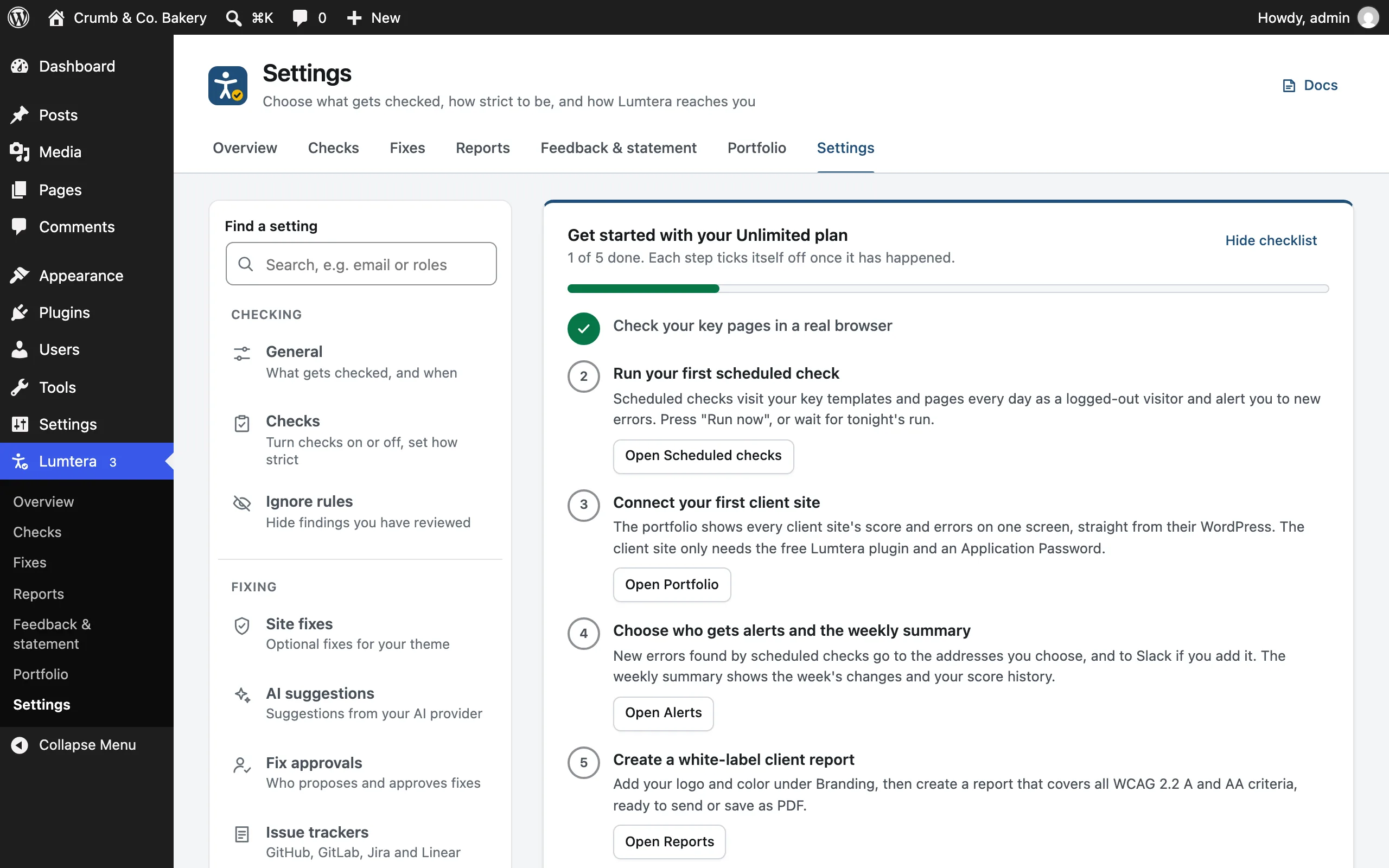
After you activate a license, administrators see Get started with your … plan on the Overview and the License screen: five steps chosen for your plan. Each step ticks itself off once it has happened, so there's nothing to mark by hand.
| Step | Shown on |
|---|---|
| Check your key pages in a real browser: run page checks on your home page and the pages people use most | Every plan |
| Run your first scheduled check: press Run now under scheduled checks, or wait for the night's run | Every plan |
| Connect your first client site in the client portfolio | Growth and up |
| Check your store as a signed-in customer: add the Customer role under signed-in checks | Personal, when WooCommerce is active |
| Test your forms with form tests | Personal, without WooCommerce |
| Choose who gets alerts and the weekly summary under Alerts | Every plan |
| Create a white-label client report under Client reports | Growth and up |
| Prepare your conformance report (ACR): review each row of the ACR and save it | Personal |
When every step is done, the card says You are set up. Hide checklist (or Close, once everything is done) hides it for you only. It comes back if the plan changes, with that plan's steps. While it shows, the free plugin's getting-started checklist steps aside, so the Overview never has two. Developers can change the steps with the lumtera_pro_onboarding_steps filter.
People who can't manage the license see "Ask a site administrator to activate the Lumtera Pro license." instead of the key field.
Your license card
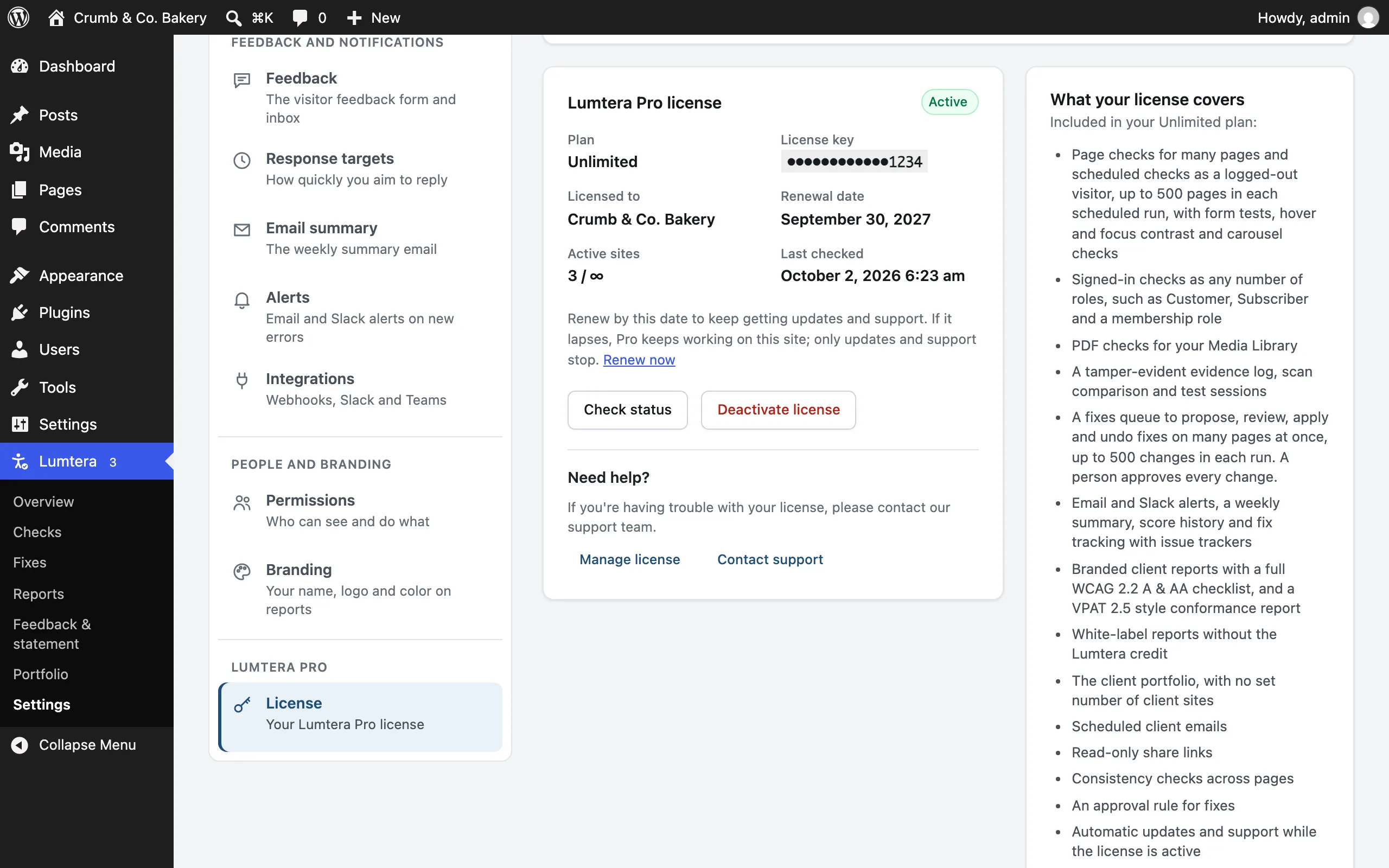
Once a key is active, the Lumtera Pro license card shows:
- A status at the top: Active, Expired, Disabled, Revoked, Invalid, Not active on this site, Not activated on this site or Not activated. On a multisite network you may also see Main site only (see Multisite).
- Plan (with a Lifetime badge for lifetime keys), License key (only the last four characters are shown), Licensed to, Active sites, for example "3 / 5", or "2 / ∞" for no set number, and Last checked, the time of the last check with the store.
- Renewal date, or Expired on if it has expired, or Expires: Never (lifetime) for lifetime keys.
- Under a yearly license's date: "Renew by this date to keep getting updates and support. If it lapses, Pro keeps working on this site; only updates and support stop." with a Renew now link. In the last 30 days, and after it expires, this becomes a renewal reminder.
Buttons:
- Check status checks the key with the store again, and says "License checked with the store. Status: Active." Use it after you renew or upgrade.
- Deactivate license frees the activation so you can use it on another site. You're asked to confirm first: "Deactivate the license on this site? Pro features stop here until a key is activated again." Then you see "License deactivated on this site." The key is always removed here, even if the store can't be reached. If the store didn't confirm it, a message tells you to remove this site from the license under Licenses in your store account.
Under Need help?, Manage license opens your store account and Contact support opens the support form.
Next to it, What your license covers starts "Included in your … plan:" and lists what your plan includes, with its limits, for example "…up to 500 pages in each scheduled run…" and "…up to 500 changes in each run". Below, Needs a higher plan lists what a higher plan adds, for example "Growth plan and above: white-label reports without the Lumtera credit, the client portfolio, scheduled client emails, read-only share links and consistency checks across pages.", with See the … plan and Upgrade in your account links. It ends with a reminder that if a license expires, Pro keeps working on the sites where it is active; only updates, support and activating new sites pause.
Before a key is active, the card is called What Lumtera Pro includes and lists every plan's features.
The card shows no prices.
Plans
| What | Personal | Growth | Agency | Unlimited |
|---|---|---|---|---|
| Sites | 1 | 5 | 25 | Unlimited |
| Pages per scheduled run | 25 | 100 | 250 | 500 |
| Fixes per queue run | 25 | 100 | 250 | 500 |
| Client portfolio | — | 5 client sites | 25 client sites | No set number |
| Signed-in checks | 1 role | 1 role | Any number of roles | Any number of roles |
Every plan includes page checks and scheduled checks, signed-in checks, form tests, hover and focus contrast and the carousel check, PDF checks, test sessions, the evidence log, compare scans, the fixes queue, fix tracking and issue trackers, alerts and the weekly digest, ignore rules, the activity log and webhooks, feedback response targets, burden records, client reports with your branding, the conformance report (ACR) and the client role.
| Plan | Adds |
|---|---|
| Growth and up | White-label (hide the Lumtera credit on reports), the client portfolio, client emails, share links, and consistency checks across pages |
| Agency and up | Signed-in checks as any number of roles, the approval rule for fixes, the network overview and a network-wide license |
Yearly and lifetime licenses
Personal, Growth and Agency are sold as a yearly license or a lifetime license; Unlimited is sold yearly. Both kinds include the same features and limits. A lifetime license never expires, so it never shows a renewal date or reminder; the card says Expires: Never (lifetime).
A key without a plan recorded in the store counts as Personal. See pricing for current prices.
Limits per run
- Pages per scheduled run is how many pages one scheduled check fetches. Pages beyond it wait, in priority order, and aren't checked in that run.
- Fixes per queue run is how many changes one fixes queue run proposes, approves, applies or undoes. The rest are counted, and the screen says how many are left for the next run.
- Client sites is how many sites the client portfolio holds.
- Signed-in roles is how many roles signed-in checks can use.
When you reach a limit
When something is held back by your plan, the message names your plan's limit and the plan with more, for example "Growth checks up to 100 pages in each run.", followed by two links:
- See the … plan opens that plan on the pricing page.
- Upgrade in your account opens your store account, where each key lists the upgrades available to it, with the price already reduced for the time left.
At 80% of a limit (pages in a scheduled run, fixes in a queue run, or client sites), people who manage the site see one quiet line on the Pro screen with the same links. Dismiss this tip hides it for you, until your plan or its limit changes. There are no pop-ups, and nothing is locked early.
Developers can change both with the lumtera_pro_limit filter. See For developers.
Upgrade or change plan
Buy the upgrade in your store account, then click Check status on the License screen. The message says, for example, "License checked with the store. Status: Active. Your plan changed from Growth to Agency."
A feature your plan doesn't include shows a short note naming the plan that does, with the same See the … plan and Upgrade in your account links.
Renewal reminders
A yearly license shows a reminder 30 days and 7 days before it expires, for example "Your Lumtera Pro license expires on September 30, 2027, in 7 days. Renew it to keep getting updates and support; if it renews automatically, there is nothing to do. Pro keeps working either way." with Renew now and License details links.
- It shows only on Lumtera's screens, only to people who can manage the license, and never on the License screen itself, whose card already says the same.
- Dismiss hides that reminder for you. The next stage (7 days, then expired) shows again, and a renewed license starts over.
- Lifetime licenses never see it.
When a license expires
Everything keeps working on sites where the license is already active. An expired license stops three things only:
- updates
- support
- activating the key on new sites
The License card says "Your license has expired. Pro keeps working on this site, but updates and support have stopped until you renew." with a Renew now link. On the other Lumtera screens, a reminder says "Lumtera Pro license expired. Your Lumtera Pro license expired on September 30, 2027. Pro keeps working here; renew to get updates and support again." with Renew now and License details, until you renew or dismiss it. The update row on the Plugins screen says "Your Lumtera Pro license has expired. Renew your license to download this update." with a Renew now link.
Don't deactivate an expired key
An expired license can't be activated again, here or on any other site, until it's renewed. If you deactivate it, Pro features stop on this site. An expired key only keeps Pro working where it was already active: entering an expired key on a new site doesn't turn Pro on.
If the license can't be confirmed
Lumtera Pro checks the license with the store once a day. Check status runs the same check straight away, with the same rules.
- The store can't be reached (for example, your host blocks outgoing requests), or can't look the license up: nothing changes. The last known status is kept.
- The store says the license is disabled or revoked (for example after a refund): Pro features turn off on this site straight away, with no grace period. The card's status shows Disabled (or Revoked), the key field comes back, and the Overview and Settings screens say "Invalid license: Lumtera Pro could not activate the saved key (status: Disabled). Please check your license key." This is different from an expired license, which keeps working.
- Any other answer that the key isn't valid for this site (it can be a store problem, a moved domain or a staging copy): you get a grace period. Pro keeps working, and a notice says "Lumtera Pro could not confirm your license." with the date it will pause, and a Check the license link. Pro only pauses after three failed checks spread over at least 7 days. One odd answer never switches Pro off.
- Paused: if the grace period runs out, the notice changes to "Lumtera Pro features are paused." with the reason, and Check license again and Open the license screen buttons. When the store confirms the license again, Pro starts working again.
While Pro is paused or not activated, Pro screens show the activation card. Alerts, the weekly digest, scheduled checks, PDF checks, portfolio syncs, webhooks and issue tracker requests stop, and site-wide ignore rules stop hiding findings. Your data is kept, and everything resumes when the license is active again.
Moved the site to a new address?
Lumtera Pro remembers the address the license was activated for. If the site's address changes (a domain move, or a copy of the site), you'll see "Lumtera Pro: this site has a new address." It names the old and new address, and has a Reactivate the license link. A change between http and https, or adding or removing www, doesn't count as a move.
- This is the live site: reactivate the license, so Pro and its updates keep working.
- This is a staging or development copy: set
WP_ENVIRONMENT_TYPEtostaging,developmentorlocalin itswp-config.php. Otherwise the store won't recognize the address, the grace period starts, and Pro pauses when it ends. The notice shows that date too.
Common activation errors
| Message | What to do |
|---|---|
| This license has reached its site limit… | Deactivate it on a site you no longer use, or upgrade to a bigger plan in your account. |
| This license expired on … | Renew it in your store account, then click Check status. |
| That license key was not recognized. Check it for typos. | Copy the key again from your purchase email or store account. |
| That key is for a different product… or That key belongs to a bundle… | Use the Lumtera Pro key from your purchase email. |
| This license has been disabled… | Contact support. |
| Network activation needs the Agency or Unlimited plan… | See Multisite. |
| Could not reach the license server… | Your server can't connect to store.mantrabrain.com. The message includes the reason, such as HTTP 403. Ask your host whether outgoing requests are blocked. |
Updates
Lumtera Pro updates like any other plugin, from Dashboard → Updates and the Plugins screen. View details shows the new version's description and changelog. Update information is cached for 3 hours; Check again on the Updates screen fetches it fresh, and a new version shows on the first click.
An active license is needed to download updates. Without one, the update row says "A valid Lumtera Pro license is required to download this update." with Activate license and get a license links. An expired license gets the renewal message above instead.
Updates are only downloaded from secure (https) addresses. If the store ever answered with a plain http download address, the update would still be announced but couldn't be downloaded. The text the store sends for View details, such as the plugin name and version, is shown as plain text.
Deleting the plugin
Deleting Lumtera Pro keeps the license key on the site, so a reinstall keeps working, even with an expired key. To remove it too, define LUMTERA_PRO_DELETE_LICENSE as true in wp-config.php before deleting: the key is removed and this site's activation is freed on the store, so the key can be used on another site. See Data & uninstall.
Multisite
If Lumtera Pro is network-activated, one license covers the whole network and uses a single site activation. A network license needs the Agency or Unlimited plan. Manage it under Network Admin → Lumtera → License; there the button is Deactivate on this network. Each site's License section shows a read-only summary, with a Manage the network license button for super admins.
A network license on the Personal or Growth plan works on the main site only, and the network screen says so. To use Pro on the other sites, upgrade the plan, or network-deactivate Pro and activate it and a key on each site. See Multisite network.
For developers
lumtera_pro_limit( $limit, $feature, $plan )changes a plan's allowance:scheduled_pages,batch_size,portfolio_sitesorrole_scans.0means no set number and-1means none. Scheduled runs always have a cap:0there means the Unlimited plan's 500.lumtera_pro_can( $allowed, $feature, $plan )changes whether the plan includes a feature, such aswhite_label,portfolio,consistencyorapproval_policy.lumtera_pro_price_plan_map( $map )maps the store's price IDs to plans. By default, 1–4 are the yearly Personal, Growth, Agency and Unlimited prices and 5–8 the lifetime prices of the same plans. An ID missing from the map counts as Personal.lumtera_pro_onboarding_steps( $steps, $plan )changes the first-run checklist.- The
lumtera_pro_license_activatedandlumtera_pro_license_checkedactions run after a key is activated and after each daily license check. lumtera_pro_license_is_active( $active, $status )decides whether Pro features are on.lumtera_pro_network_license( $network )decides whether the license is managed once for the network.lumtera_pro_license_admin_urlandlumtera_pro_license_upgrade_urlchange where the update row's Activate license and get a license links go.- The
lumtera_pro_license_data_updated( $key, $status, $response )action runs whenever the stored license changes.
See Hooks & filters.