
Site report
Overview
Accessibility → Overview is your site at a glance. By default, editors and administrators can open it. Administrators choose which roles can under Accessibility → Settings → Permissions, in See reports and check the site. See Roles & permissions.
Check all content
Click Check all content to check every post, page and product. Lumtera works in small batches on your own server, so it runs within the time limits of any host, and nothing is sent to an outside service.
- A progress bar shows how far it's got. Keep the tab open. You can carry on working in another tab.
- Stop stops after the current batch.
- When some content is already checked, Check N new items checks only the rest.
- After the first run, the button says Check all content again. Use it after you change settings.
You don't need to re-run it after editing. Posts are checked again each time they're saved.
Summary cards
| Card | Shows | Click it to see |
|---|---|---|
| Average automated score | The average score across checked content | |
| Errors | Total errors, and how many items have them | Items with errors |
| Needs review | Items a person should confirm | Items to review |
| Coverage | How much content has been checked | Items not checked yet |
See Scores & severities for how these are worked out.
Fix once, clear many
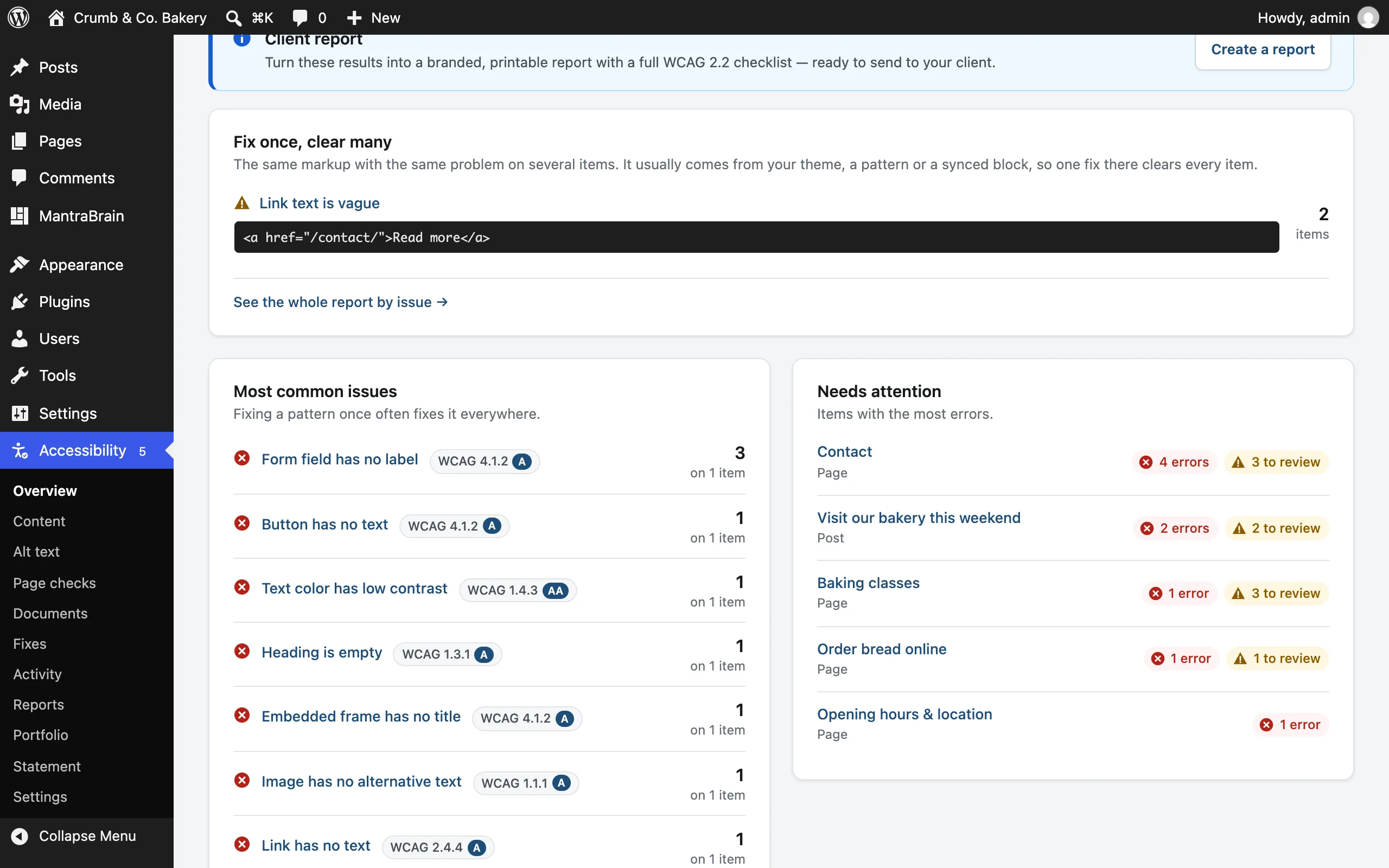
When the same problem appears in the same markup on two or more items, the Fix once, clear many card lists it, most widespread first, up to five at a time. Each row shows the check, a short piece of the markup and how many items have it.
This usually means the markup comes from your theme, a pattern or a synced block. Fix it there, and every item clears. Click a row to see the whole group, or See the whole report by issue for all of them. See Content report, by issue.
The card is hidden when nothing repeats.
Most common issues
Up to eight checks that fire most often across your site, errors first. Each shows how many times it was found and on how many items. Fixing a pattern once often fixes it everywhere. Click a check to see every item that has it.
Needs attention
The items with the most errors, up to seven. See all N items with errors opens the Content report filtered to them.
What a score cannot tell you
A reminder that automated checks find only part of WCAG, with a five-minute manual checklist. See What automated testing can't do.
With Lumtera Pro, the Overview also shows your score history.
Content report
Accessibility → Content has two views. Switch between them with By page and By issue at the top.
By page
By page lists every checked post and page, worst first: most errors, then most items to review.
Filter by:
- Search titles
- Show: All checked, With errors, Without errors, or Not checked yet
- Type: posts, pages, products and so on
- Issue: any single check
- Severity: Error, Needs review or Tip
Each row shows the item's errors, items to review, tips and score, and when it was last checked. If anyone has recorded guided manual checks on it, the row also says how many are done and failed, such as "Manual checks: 4 of 9 done, 1 failed".
Click Issues to see each problem inline, with how to fix it and the markup. Click Check again (or Check for an item not checked yet) to re-check one item. To fix or dismiss an issue, open the item in its editor.
By issue
By issue groups the same finding across your content. A finding counts once per item, however many times it appears there. Groups are sorted by how many items they're on, most widespread first, so problems from a shared source rise to the top.
Each group shows:
- the severity, the check and its WCAG criterion
- On N items
- the message and the markup that caused it
- Show the N items, which lists the items with a Check again button on each. After you fix the shared source, click Check again on an item to see Fixed here or Still here.
A group lists up to 50 items. When there are more, See every item with "…" opens the By page view filtered to that check.
You can filter this view by Type, Issue and Severity.
Fix it at the source
Markup shared by many items usually comes from your theme, a pattern or a synced block. Fix it there, then use Check all content again on the Overview to update every item at once.
If a repeated finding is fine everywhere, Ignore everywhere in Lumtera Pro hides it across the whole site, with a reason. Pro
Export
- With Lumtera Pro: Export CSV, in the By page view, downloads every finding matching your filters. See Client reports. Pro
- Free: use WP-CLI:
wp lumtera issues --format=csv > issues.csv. See WP-CLI.
The Accessibility column
The Posts, Pages and Products lists (and any other checked content type) get an Accessibility column after the title. It shows:
- Not checked, N errors (red), N to review (amber) or No issues found (green)
- Score N, and when it was last checked
Click the column header to sort by score, worst first. Items that haven't been checked always sort last.
Dashboard widget
The Accessibility widget on the WordPress Dashboard shows your Average score, Errors and Needs review, the three items with the most errors, and how many items have been checked. It appears for the same roles that can open the Overview. Hide it from Screen Options if you don't need it.
Share results
- Get a summary by email each week: see Weekly email summary.
- Let more roles see the reports: see Roles & permissions.
- Give read-only access to an agency: see the Lumtera Reporter role.
- Send a client a branded report: see Client reports in Pro. Pro