
Accessibility Conformance Report
Pro Every plan
An Accessibility Conformance Report (ACR) documents, criterion by criterion, how a website conforms to WCAG. Clients, procurement teams and public bodies often ask for one, usually in the VPAT® format.
Lumtera Pro drafts an ACR for your site in the VPAT 2.5 WCAG edition layout, covering the 55 WCAG 2.2 level A and AA success criteria, with Revised Section 508 and EN 301 549 editions from the same evidence. It fills in each row from your results. You review and complete it. The conformance report is included in every Lumtera Pro plan, Personal included.
A draft, not a certification
Lumtera can't decide conformance for you. Automated checks find only part of what WCAG covers, so the report never marks a criterion as "Supports" from automated results alone. Treat what Lumtera fills in as a starting point. A person who knows the site must review every row before the report is shared. The report itself says it isn't a certification, and it isn't legal advice.
Open the report
The conformance report belongs to the Reports group, but it isn't one of its sub-tabs. To open it:
- Go to Lumtera → Reports → Reports.
- Below the reports list, find the Accessibility Conformance Report (VPAT 2.5) card.
- Click Open conformance report.
If your license isn't active, the card says "Every Lumtera Pro plan includes conformance reports. Activate your license to open one." with a link to enter your license key.
Anyone with See reports and check the site can view, print and download it (editors and administrators by default). Editing and saving it needs the Manage client reports permission, which administrators always have. Give it to other roles under Lumtera → Settings → Permissions (see Who can manage reports). To give a client the finished report, send them the PDF, HTML or CSV you export below, or give them a client sign-in.
For clients and read-only staff
A user with the Accessibility client role, or anyone else without the Manage client reports permission, sees View conformance report on the card instead. It opens the finished report in a new tab, read-only, with the same print and download buttons. Its back link says Back to reports. They never see the editor, so they can't change or save the report.
If someone without the permission opens the editor's address directly, they get a read-only screen instead: "You can view, print and download the conformance report. Editing it needs the "Manage client reports" permission, which an administrator can give under Lumtera → Settings → Permissions.", with View and print, Download HTML and Download CSV.
There's one conformance report per site. It always reflects your current results, and the report date is the day you view or export it.
Before you start
The report is only as good as the evidence behind it:
- Scan your content, from Lumtera → Overview. Only published content counts.
- Run page checks on your key pages, so theme-level criteria such as page title, language, skip links, zoom and contrast are covered. Form tests add evidence for error messages (3.3.1, 3.3.3 and 4.1.3).
- Record manual results. Only a passed manual check can make a criterion Supports. There are two ways:
- the guided checklists in the block editor, for a single page;
- test sessions, for each key page template, with the browser and assistive technology you used. Only signed-off sessions count.
How each row is filled in
Each criterion gets one of the five VPAT conformance levels, from this evidence:
| Level | When Lumtera uses it |
|---|---|
| Supports | A manual check passed for this criterion, no automated or manual check failed, and no automated finding for it is still waiting for review. |
| Partially Supports | Something failed (an automated error, or a failed manual check) on some of the pages checked, but not all. |
| Does Not Support | Something failed on every page that was checked. |
| Not Applicable | Manual checks found the criterion doesn't apply, and no automated finding needs review. |
| Not Evaluated | Anything else. |
"Not Evaluated" covers three common cases, and the Remarks and explanations column says which one applies:
- Automated checks found nothing. Clean automated results alone never make a row "Supports": "Automated checks found no failures on 19 pages checked. Not confirmed by manual testing, so conformance is not claimed."
- A manual check passed, but automated findings still need review. An unreviewed possible issue could be a failure, so the row waits: "Manual checks passed, but "Supports" is not claimed until the possible issues above are reviewed." Review those items (confirm or dismiss them), and the row can move to "Supports". Possible differences found by consistency checks count as findings to review too.
- Nothing covered the criterion: "No automated check or manual test covered this criterion."
Other remarks say what was found, for example "Automated checks found 4 failures. Pages affected: 4 of 19 checked." or "4 possible issues still need human review. Pages affected: 2."
A page is counted once. A live page check of a published post counts as that post, and a phone-width check of the same page adds only what a phone-width check measures (1.4.10 Reflow). A page you also check signed in as a test user counts as its own page.
What counts as evidence
- Content checks of published content.
- Live page checks, including signed-in checks.
- Form tests: their findings count with the page the form is on.
- Manual checks recorded in the block editor, by page.
- Signed-off test sessions, by page template. The remarks list them under "Signed-off test sessions:", with each template's result, who tested it, the assistive technology and browser, and the date. When a page has both an editor checklist result and a session result, the newer one counts.
- Consistency checks across pages (Growth plan and up), as findings to review.
"Not Evaluated" rows need work
The VPAT reserves "Not Evaluated" for level AAA. Before you call the report complete, evaluate those rows: test them, record manual checks or a test session, review open findings, or set the level yourself with an explanation.
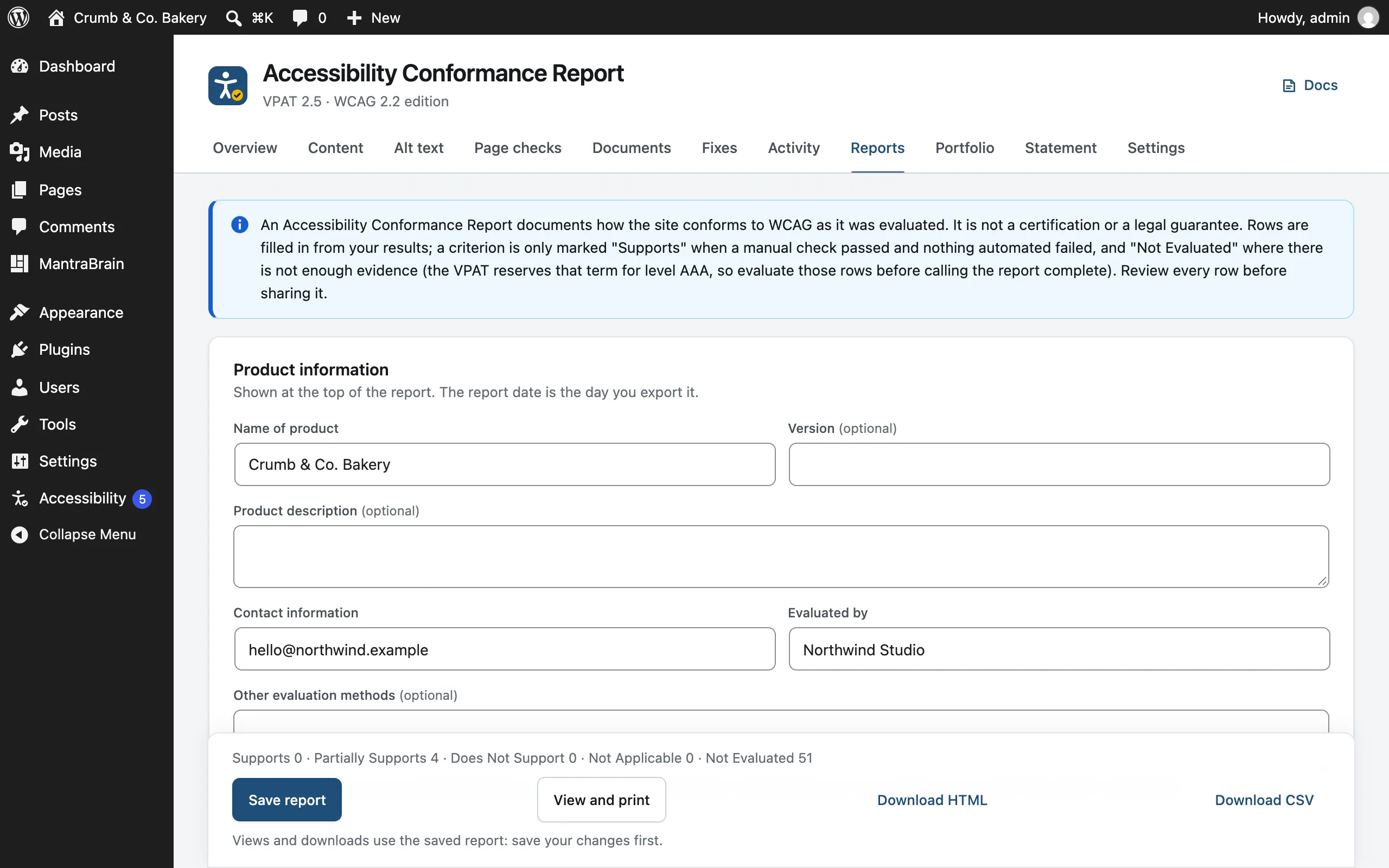
Review and edit
The screen has three parts.
Product information, shown at the top of the report:
| Field | Default |
|---|---|
| Name of product | Your site name |
| Version (optional) | Empty |
| Product description (optional) | Empty |
| Contact information | The contact email from your branding |
| Evaluated by | The agency name from your branding |
| Other evaluation methods (optional) | Empty. Automated Lumtera checks and guided manual checks are listed for you. Add anything else, for example "Expert review with NVDA 2025.1 and Chrome". |
| Notes (optional) | Empty |
Table 1: Success Criteria, Level A and Table 2: Success Criteria, Level AA. For each criterion:
- The Conformance level list starts on Automatic: level, which follows your results. Choose a level to override it. Overridden rows are marked Edited.
- The Remarks and explanations box shows the automatic text. Edit it to write your own. Clear it to go back to the automatic text.
The bar at the bottom counts the rows at each level, for example "Supports 0 · Partially Supports 5 · Does Not Support 0 · Not Applicable 0 · Not Evaluated 50". Click Save report to keep your changes: "Conformance report saved."
Editions
Under Other editions, from the same evidence, each edition has its own view and CSV. Every plan includes all three.
| Edition | What it covers |
|---|---|
| WCAG 2.2 | The 55 A and AA criteria |
| Revised Section 508 | The web tables, with Lumtera's evidence, plus Functional Performance Criteria. Section 508 refers to WCAG 2.0, so criteria added in WCAG 2.1 and 2.2 aren't listed. |
| EN 301 549 | Clause 9 (web). Clauses about hardware, two-way communication, video, non-web documents and software aren't covered. |
What a person must answer stays Not Evaluated until they do. The report says which parts it doesn't cover.
View, print and export
Save first: "Views and downloads use the saved report: save your changes first."
- View and print opens the report in a new tab. Its Save as PDF button opens your browser's print dialog. Chrome and Edge produce a tagged PDF that screen readers can navigate.
- Download HTML saves a single self-contained file, with your logo embedded if it's under 1 MB.
- Download CSV saves both tables, one row per criterion, with the columns Table, Criterion, Name, Level, Conformance Level, Remarks and Explanations.
The report includes:
- a cover with your logo or agency name, the product, the site, the report date, Evaluated by and Contact
- product information and the Evaluation methods used: automated content checks, live page checks (and the roles pages were checked signed in as), guided manual checks and signed-off test sessions, with how many pages each covered, plus your own methods
- Applicable standards and guidelines: WCAG 2.2 level A and AA, not AAA. Revised Section 508 and EN 301 549 tables aren't included.
- the terms, a summary count, and Tables 1 and 2
- Table 3: Success Criteria, Level AAA, which says level AAA wasn't evaluated
- About this report, which says it isn't a certification, doesn't promise that the site is free of barriers or meets any law, and doesn't reflect changes made after the report date
The report uses your branding accent color, logo and footer. It ends with "Prepared with Lumtera" unless white-label is on (Growth plan and up). With white-label on, the evaluation methods don't name Lumtera either.
A summary of the saved conformance report is also part of the evidence pack.
VPAT® is a registered service mark of the Information Technology Industry Council (ITI). The report follows the structure of the VPAT 2.5 WCAG edition.