
Feedback form and inbox
Accessibility laws such as the European Accessibility Act expect a way for people to tell you about a barrier, and to ask for content in a format they can use. Lumtera gives you a feedback form for your site, and an inbox in WordPress to handle what comes in. Everything is stored on your own site.
Add the form
Add the form to a page, such as your accessibility statement or contact page:
- Block: add the Accessibility feedback form block.
- Shortcode:
[lumtera_feedback], for the classic editor, widgets and page builders.
The form works without JavaScript, and it is safe in cached pages. It asks:
- What can we help with?: Report a barrier, Request an accessible version of content or a document, or Something else
- What went wrong?: the visitor's message
- Page address: the page where they had the problem. The form fills it in when it can, and the visitor can change it.
- Preferred format for our reply, for requests for another format: for example large print, easy read, audio or Braille
- Your name and Your email address, both optional, "Only if you would like a reply." A visitor who gives them ticks a box to agree that you may store them to reply.
After sending, the visitor sees "Thank you, your feedback was sent. Your reference is A11Y-2026-0001." Errors are listed at the top of the form with links to each field, and move focus there.
Link to the form from your statement: the Accessibility statement link block, and [lumtera_statement_link link="feedback"], can link straight to it. The statement finds the page with your form and links it as the feedback form, unless you give another address.
The Feedback inbox
Go to Lumtera → Feedback & statement → Feedback. The menu shows the number of new messages.
Each message gets:
- a reference, such as A11Y-2026-0001, numbered per year
- a Status: New, In progress, Answered or Closed
- the Type, the Page, the Preferred reply format, and the visitor's name and email when given
- Internal notes and history: every status change, reply and note, with who and when
Filter the list by status (All, New, In progress, Answered, Closed) and Type, or search messages and references.
Reply, update and note
Open a message to:
- Reply by email. Write your reply and click Send reply. It is sent from your site, like its other emails, with the subject "Your accessibility feedback (A11Y-…)". A copy is kept with the message, and the status becomes Answered. If the visitor left no email address, the inbox says so: record what you did in an internal note instead.
- Update status.
- Add an internal note. Only people who handle feedback see notes. They are never sent to the visitor.
Delete this feedback is for spam only. It asks first ("Delete A11Y-… and its history for good? This cannot be undone."), because it removes the record and its history. Close real requests instead, so you keep a record of how they were handled.
With Lumtera Pro
Response targets add your own reply goals per request type, an Overdue view and alerts, Assigned to me, assigning a request to a colleague, and creating a fix task from it.
Settings
Go to Lumtera → Settings → Feedback. Only administrators can change these.
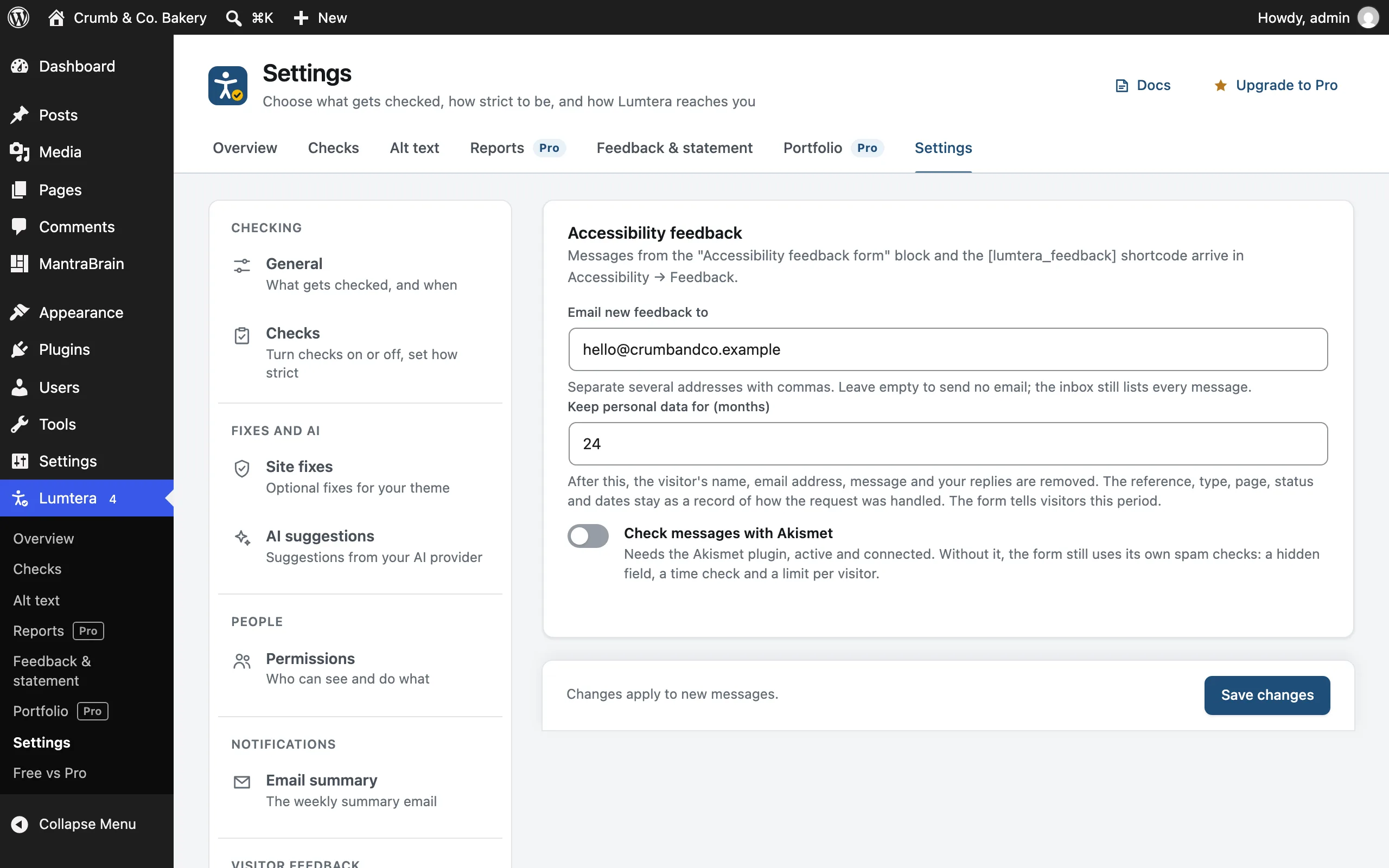
| Setting | Default | What it does |
|---|---|---|
| Email new feedback to | Empty | Addresses to email when a message arrives, separated by commas. The subject is "[Site name] New accessibility feedback A11Y-…". Leave it empty to send no email; the inbox still lists every message. |
| Keep personal data for (months) | 24 | After this, the visitor's name, email address, message and your replies are removed. The reference, type, page, status and dates stay, as a record of how the request was handled. The form tells visitors this period. |
| Check messages with Akismet | Off | Sends each message to Akismet to check for spam. Needs the Akismet plugin, active and connected. |
If an address in Email new feedback to isn't a valid email address, Lumtera says which ones were left out when you save. If none are valid, it warns that no email will be sent for new feedback, rather than switching the emails off without telling you.
Changes apply to new messages.
Spam protection
Without Akismet, the form still protects itself:
- a hidden field that people don't see and bots fill in
- a time check, so a form sent too quickly is refused
- a limit per visitor, 5 messages an hour by default
The visitor's IP address is not stored. A scrambled form of it is kept for up to an hour, only to count messages for the limit.
Who can handle feedback
People with the Handle accessibility feedback permission can open the inbox. By default, that's administrators and editors, and shop managers when WooCommerce is active. Feedback can hold visitors' names and email addresses, so give this only to people who answer it. Change it under Lumtera → Settings → Permissions. See Roles & permissions.
Privacy
- Messages are stored on your site only. Nothing is sent anywhere else, unless you turn on the Akismet check.
- Personal data is removed after the retention period you choose, by a daily clean-up.
- Feedback is included in WordPress's personal data export and erase tools, as "Lumtera accessibility feedback". Erasing removes the name, email address, message and replies, and keeps the record.
- The privacy policy guide (Settings → Privacy) has suggested text about the form.
- Uninstalling Lumtera deletes all feedback. Export anything you need to keep first.
For developers
The form posts to POST /lumtera/v1/feedback (public, sanitised and rate-limited). The capability is lumtera_manage_feedback (filter lumtera_feedback_capability). Filters include lumtera_feedback_rate_limit, lumtera_feedback_client_ip and lumtera_feedback_is_spam, and the actions lumtera_feedback_received and lumtera_feedback_updated fire when a message arrives or changes. See Hooks & filters and REST API.