
Fix tracking Pro
Turn any issue into a task, assign it to someone, and let re-scans confirm the fix. Tasks close themselves once Lumtera no longer finds the issue. If your team works in GitHub, GitLab, Jira or Linear, each fix can become an issue there too.
Track an issue
A Track fix button appears on every issue:
- in the block editor's Lumtera sidebar
- in the classic editor's Accessibility box
- in the issue lists on Accessibility → Content
- Click Track fix on the issue.
- Choose who to assign it to under Assign to. It's you by default, or pick Nobody yet.
- Click Track. A status chip now shows on the issue.
The person you assign gets an email, unless you assigned yourself.
Who can assign what
- Anyone who can edit a post can track fixes on it.
- People who can't edit other people's posts, such as authors, can only assign fixes to themselves.
- Editors and administrators can assign fixes to anyone who can edit that post.
- Closing an error as Won't fix needs the same permission as dismissing an error. By default that's editors and administrators. See Dismissing issues.
Statuses
| Status | Meaning |
|---|---|
| Open | Tracked, not started |
| In progress | Someone is working on it |
| Fixed | A re-scan confirmed the issue is gone. If someone marks it Fixed by hand, it shows as Marked fixed (not yet verified) until the next re-scan confirms it. |
| Won't fix | Closed without fixing, for example because the issue was dismissed |
Re-scans confirm fixes
Every time a post is scanned (for example when it's saved), Lumtera Pro checks its tasks:
- The issue is gone: the task becomes Fixed (verified).
- The issue is still there: a task marked Fixed is reopened.
- The markup changed, but the same problem is still there: the task follows the issue and stays open.
- The issue was dismissed: the task closes as Won't fix.
Deleting a post deletes its tasks.
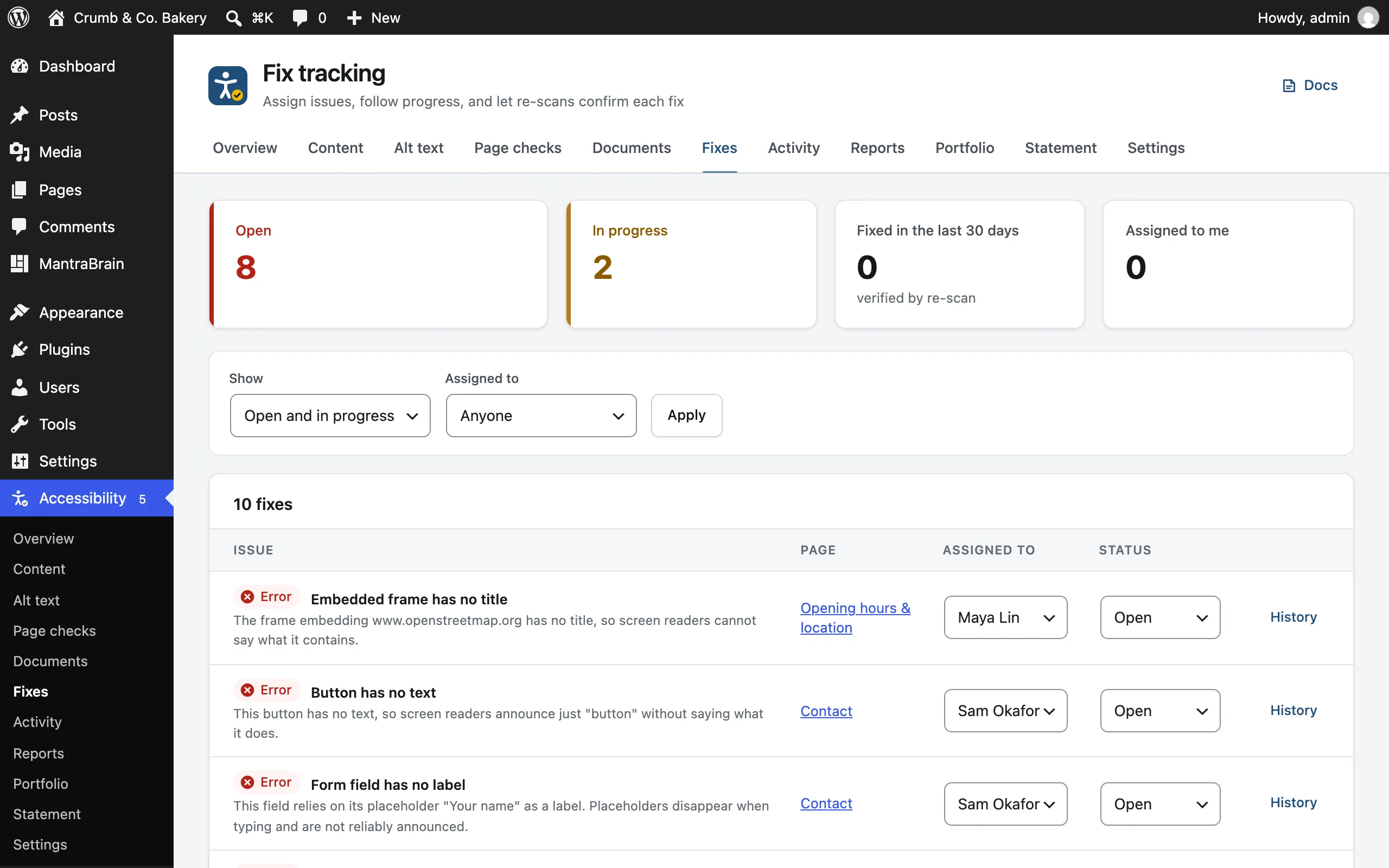
The Fixes screen
Go to Accessibility → Fixes. Tiles show Open, In progress, Fixed in the last 30 days (verified by re-scan only) and Assigned to me.
Filter by Show (Open and in progress by default, any single status, or Everything) and Assigned to (Anyone, Nobody yet or a person). In the table you can change a task's assignee and status in place, and open its History.
People without the See reports and check the site permission, such as authors and contributors, see My fixes instead: tasks assigned to them, or on posts they wrote.
History
Every task keeps a full history: who started tracking it, who it was assigned to, each status change, notes, issues created in a tracker, and each automatic change from a re-scan. Automatic changes are shown as made by "Lumtera". Fix tracking events also appear in the Activity log.
Issue trackers
Send tracked fixes to the tool your developers already use: GitHub, GitLab, Jira Cloud or Linear. One tracker can be connected at a time. The fix is still confirmed by Lumtera's re-scans, whatever happens to the issue in the tracker.
Connect a tracker
Go to Accessibility → Settings → Issue trackers (administrators only).
- Under Send issues to, choose your tracker. Only its fields are shown.
- Fill in the fields and the token for your tracker (see the table below).
- Save.
- Click Test connection. You'll see, for example, "Connected to GitHub: acme/website." The test only reads from the tracker. It never creates an issue.
| Tracker | Fields | Token |
|---|---|---|
| GitHub | Repository owner and Repository name. You can paste the repository address instead. | Fine-grained personal access token with access to this repository only and the "Issues: Read and write" permission |
| GitLab | GitLab address (https://gitlab.com or your own) and Project (a path such as acme/website, or its numeric ID) | Access token: a project or personal access token with the api scope, for someone with at least the Reporter role |
| Jira Cloud | Site address (such as https://your-team.atlassian.net), Account email, Project key (such as WEB) and Issue type (default Task) | API token from id.atlassian.com, for an account that can create issues in the project |
| Linear | Team key (such as WEB) | Personal API key with access to this team |
The tracker must be reachable from the internet. A self-hosted GitLab on a private network can't be used.
If a test fails, the message says what to fix, for example a token without the right permission, a project that can't be found, or issues switched off in the repository. For Jira, a wrong issue type lists the types the project has. For Linear, a wrong team key lists the teams the key can see.
Create an issue from a fix
Once a tracker is connected, each tracked fix gets a Create issue in button (for example Create issue in GitHub):
- in the editor, next to the fix's status chip
- in the classic editor's Accessibility box and on the Content screen
- in the table on the Fixes screen
When the issue is created, the button becomes a link such as #12 in GitHub or WEB-4 in Jira, which opens the issue in a new tab. The creation is recorded in the fix's History. Each fix gets one issue: clicking again, or two people at once, never makes a second one.
The button is shown to people with the See reports and check the site permission who can edit the post.
Create issues automatically
Turn on Create an issue for every new tracked fix to open an issue each time someone clicks Track fix. Issues are created in the background, a few seconds apart, so tracking many fixes at once doesn't flood the tracker. If an automatic issue can't be created, the Issue trackers screen says why.
What each issue contains
- Title: "[Accessibility] issue on page".
- Body: the finding, its severity, the WCAG success criterion with a link to W3C's explanation, the HTML snippet, how to fix it, links to edit and view the page, and a link back to the fix on the Fixes screen.
- GitLab and Jira issues get the label
accessibility.
Nothing else from your site is sent. Lumtera doesn't update or close the issue in the tracker later.
Tokens and requests
- Tokens are stored encrypted with your site's secret keys (or
LUMTERA_PRO_ENCRYPTION_KEY, if defined). They are never shown again, sent in events or written to the activity log. - The token field stays empty after saving. Leave it empty to keep the saved token, enter a new one to replace it, or tick Forget the saved token to remove it.
- If your site's secret keys change, the saved token can't be read any more. Enter it again.
- Requests go straight from your site to the tracker, time out after 15 seconds and never follow redirects.
- When a tracker asks Lumtera to slow down, no request is sent to it until the time it names. Automatic issues wait and try again then.