
Review mode
Review mode shows accessibility issues on the published page itself, and checks the whole page as your browser renders it, theme included.
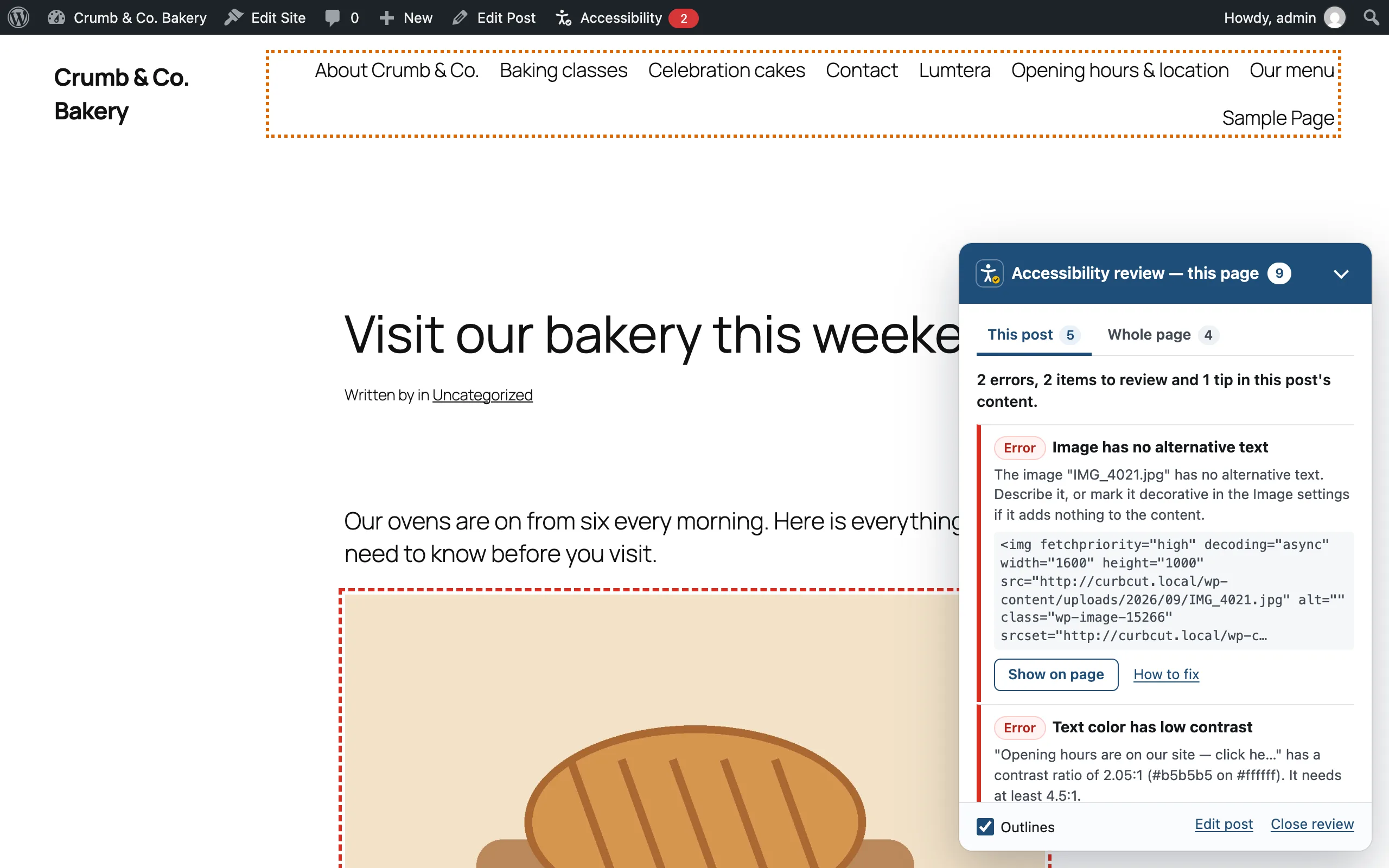
Open review mode
- While logged in, open any published post, page or product.
- Click Accessibility in the admin bar. A red count shows the errors saved for that post.
The page reloads with a panel on the side, and each issue is outlined in place. Click Accessibility again, or Close review, to leave.
Visitors never see or load any of it. Review mode only reads the page. It never changes it, and never saves results.
The panel is built so your theme's CSS can't restyle it. Press Escape to collapse it. Use the arrow keys to move between its tabs.
Who can use it
The Accessibility item appears only for logged-in users who can edit that post, and whose role may use review mode. By default, every role that can edit posts may use it: contributors, authors, editors and administrators, each on the posts they can edit.
An administrator can change which roles may use it under Accessibility → Settings → Permissions, in Review pages on the site. Administrators always can. See Roles & permissions.
This post
The This post tab lists the issues in the post's content, using the same checks as the editor.
- Show on page scrolls to the element, highlights it and moves focus to it. Items that aren't visible, such as hidden elements, say Not visible on the page.
- How to fix expands the fix, with a link to the WCAG criterion.
- Outlines switches the outlines on the page on and off.
- Edit post opens the editor.
If your theme displays the content in an unusual way and Lumtera can't find it on the page, it says so and opens the Whole page tab instead. Use the editor's sidebar for the content checks.
Whole page
The Whole page tab checks the page as your browser renders it, logged in. That includes your theme's header, menus, footer, and page-builder output. It runs once the page has finished loading. Click Check again after you change something.
| Check | WCAG | Severity |
|---|---|---|
| Page has no title | 2.4.2 | Error |
| Page title does not describe the page (such as "Untitled", "Home" or "Sample Page") | 2.4.2 | Needs review |
| Page language is missing, or not valid | 3.1.1 | Error |
| Zooming is disabled | 1.4.4 | Error |
| Page scrolls sideways at this width | 1.4.10 | Needs review |
| No main landmark, or more than one | 1.3.1 | Needs review |
| Landmarks of the same kind share a name | 1.3.1 | Needs review |
| Skip link goes nowhere | 2.4.1 | Error |
| No "Skip to content" link | 2.4.1 | Tip if the page has a main landmark, otherwise Needs review |
| Page has no H1 heading, or more than one | 1.3.1 | Needs review |
| Heading level skipped | 1.3.1 | Needs review |
| Text has low contrast | 1.4.3 | Error |
| Text over an image: check contrast | 1.4.3 | Needs review |
| Links look the same as the text around them | 1.4.1 | Error |
| Small, crowded click target (under 24 × 24 px) | 2.5.8 | Needs review |
| Sticky bar can hide the keyboard focus | 2.4.11 | Needs review |
| Focus outline removed in CSS | 2.4.7 | Needs review |
Findings about the page as a whole, such as a missing title, say Applies to the whole page instead of Show on page.
Color contrast is measured from the real colors on screen: 4.5:1 for normal text, 3:1 for large text (24 px, or 18.66 px bold). This catches low contrast from your theme and page builder, which the content checks can't see.
Reflow: to check that the page works on narrow screens and at high zoom, make the browser window 320 pixels wide (or zoom to 400%), then click Check again.
To keep the page responsive on very large pages, Lumtera samples up to 400 pieces of text and 1,500 click targets, and lists up to 20 items per check. The panel tells you when a page was too large to check completely.
Fix it once
Your header, menus and footer are usually the same on every page. Fixing a whole-page issue on one page often fixes it across the whole site.
Some issues appear only for logged-out visitors, such as cookie banners. Page checks in Lumtera Pro run these checks as a logged-out visitor, on a schedule, across your key pages.