
PDF checks Pro
PDFs are often the least accessible part of a site. Lumtera Pro checks every PDF in your Media Library for the basics a machine can decide. Open Accessibility → Documents. Anyone with the See reports and check the site permission can use it (editors and administrators by default).
When PDFs are checked
- On upload. New PDFs are checked straight away. Large files (over 10 MB), imports, and the third or later PDF in one upload are checked in the background instead.
- When a file changes. Edited or replaced files are checked again.
- In the background, once a day, for anything not yet checked.
- Check all documents on the Documents screen checks every new or changed file now. Files that haven't changed since their last check are skipped.
What's checked
| Area | Findings | Severity |
|---|---|---|
| Tags | Not tagged, tags claimed but missing, tags switched off, empty tag tree | Error |
| Tags | Tags may be unreliable | Needs review |
| Title | No document title | Error |
| Title | Title looks like a file name | Needs review |
| Title | Viewers show the file name, not the title | Tip |
| Language | No document language, or not a valid one | Error |
| Real text | Has no real text / looks like a scan | Error |
| Real text | Some pages have no real text | Needs review |
| Bookmarks | No bookmarks (documents over 10 pages) | Tip |
| Security | Security settings block screen readers | Error |
| Security | Encrypted, so some or all checks were skipped | Needs review |
Each finding comes with How to fix steps, with instructions for Word, Google Docs, InDesign and Acrobat where they apply.
Files over 50 MB, or that take longer than 10 seconds to check, are marked Too large to check or Took too long to check. Files that are missing from the server, aren't really PDFs or can't be read are marked too, with what to do next.
Passing isn't the whole story
These are the basics a machine can decide. Passing them doesn't make a PDF fully accessible. Reading order, alternative text and table structure still need a person to check them, for example with Acrobat Pro's accessibility checker or the free PAC tool.
The Documents screen
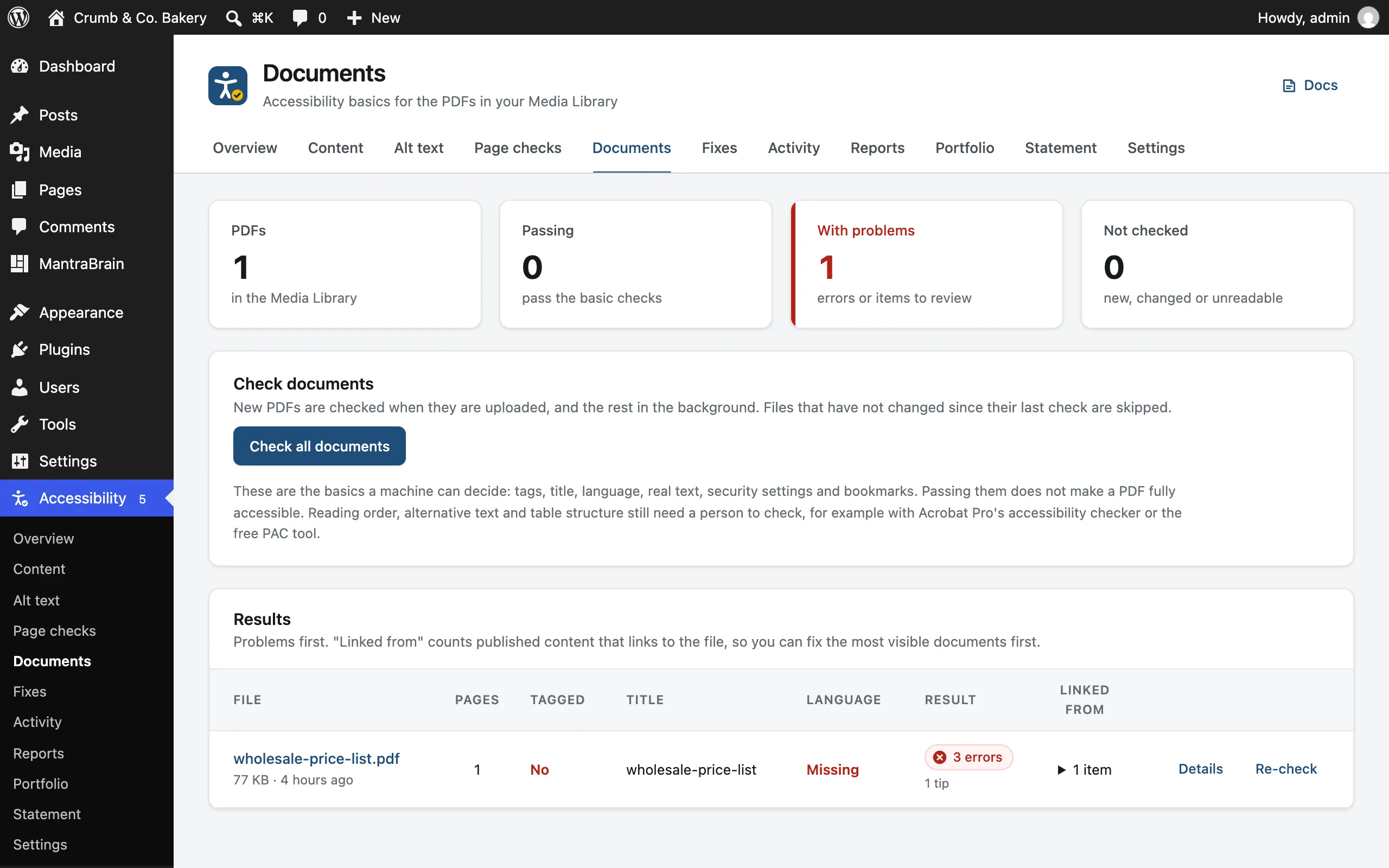
Summary tiles show how many PDFs you have, how many are Passing, how many are With problems, and how many are Not checked (new, changed or unreadable).
The table lists each file with its Pages, whether it's Tagged, its Title, Language and Result, such as Passes basic checks. Linked from shows how much published content links to the file, so you can start with the PDFs people actually open. Use Details to read the findings, and Check or Re-check to run it again. Files with problems are listed first.
Links to PDFs in your content
The free plugin's Link opens a document file check flags links to PDFs so people know what they're opening. With Pro, when the PDF is in your Media Library, the finding adds: "Lumtera Pro checks this PDF: see its result under Accessibility → Documents."