
Settings
Go to Accessibility → Settings. Only administrators can change settings. More precisely, it takes the manage_options capability, and that can't be changed.
Settings are split into sections:
- General
- Checks
- AI
- Site fixes
- Permissions
- Email summary. This section is hidden when Lumtera Pro is active, because Pro has its own weekly summary.
Lumtera Pro adds Ignore rules (after Checks), and Alerts, Branding, Integrations, Issue trackers and License at the end. Each section saves only its own fields.
General, Checks and AI each have Reset to defaults, which resets only that section.
Settings apply to the next check
Changing a setting doesn't re-check content that's already been checked. After changing what's checked or how strict to be, go to the Overview and click Check all content again.
General
Content to check
The content types Lumtera checks, reports on and shows in the editor. Every public content type is listed, including custom post types. Media (attachments) aren't listed.
Default: Posts and Pages, plus Products if WooCommerce is active.
Choose at least one. If you save with none ticked, Lumtera keeps your previous choice, saves your other changes, and shows "Choose at least one content type. The previous choice was kept; your other changes were saved."
While editing
These apply to the block editor, Elementor and the classic editor.
| Setting | Default | What it does |
|---|---|---|
| Check content on save | On | Checks each post when it's saved, so the reports and the list-table column stay up to date. Adds a fraction of a second to saving. |
| Outline blocks and widgets with issues | On | A subtle outline in the editor canvas around blocks with issues. This sets the default. Each author can switch it off for themselves. |
Before publishing
What happens in the block editor when an author publishes content that has errors.
| Option | What happens |
|---|---|
| Do nothing | Issues are only shown in the Lumtera sidebar. |
| Show a summary (default) | The pre-publish panel lists any errors. Publishing is never blocked. |
| Require confirmation | If there are errors, the author must confirm Publish anyway before the post can be published or scheduled, even with WordPress's pre-publish checks turned off. Saving drafts always works. |
Elementor and the classic editor show the issues but never hold publishing. See Before publishing.
Checks
Raise, lower or turn off any of the 64 checks.
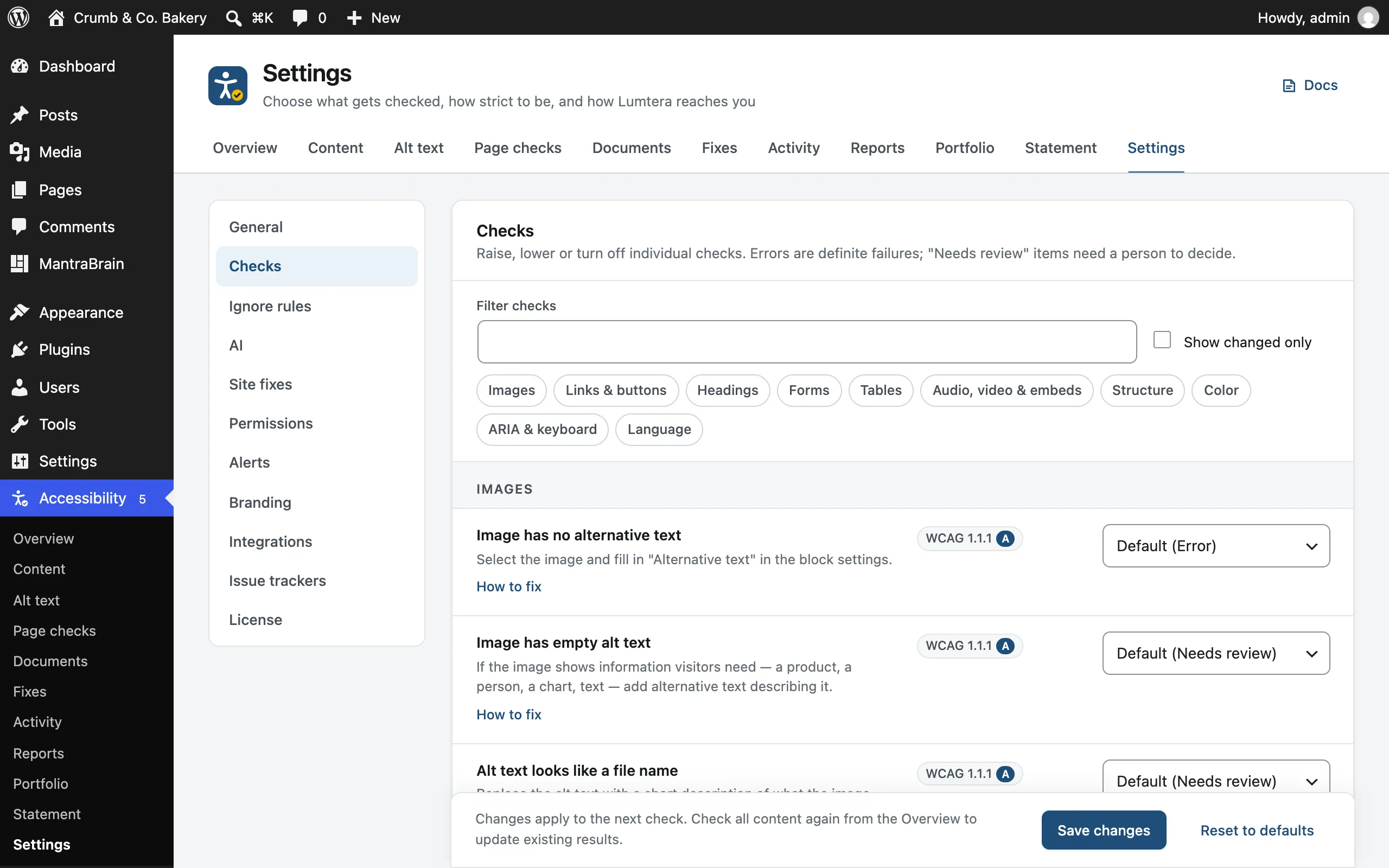
For each check, choose:
- Default: the check's built-in severity, shown in brackets
- Error
- Needs review
- Tip
- Off: the check doesn't run at all
Checks are grouped by category, with jump links. Filter checks searches check titles, fix text and WCAG numbers. Show changed only lists just the checks you've changed, marked Changed. Reset sets one check back to its default.
A severity you choose applies to everything that check finds. Turning off one of the alt text checks also removes it from the alt text manager's Needs review tab.
Be careful turning checks off
If a check keeps flagging something that's fine on one page, dismiss that item instead. Turn a check off only if it never applies to your site. With Lumtera Pro, you can also ignore one finding everywhere under Ignore rules.
AI
Optional, AI-assisted suggestions you review. Every switch is off by default, and every check works without AI.
| Setting | Where it appears |
|---|---|
| Suggest alt text | The alt text manager and the Image block |
| Suggest better link text | The block editor sidebar, on vague links, web addresses used as link text, and links that share text with links to other pages |
| Suggest headings | The block editor sidebar, on bold text that looks like a heading, and on long content with no subheadings |
| Draft a plain-language summary | The Reading level in the block editor sidebar, when content reads above the target grade |
The last three are grouped under Writing help in the editor. They're listed only when a connected AI provider can write text.
See AI suggestions for what each one needs, and exactly what it sends.
Site fixes
Optional fixes for common theme problems: a skip link, a visible focus ring, pinch-zoom, link underlines, new-tab text, document link details and form labels. All off by default. See Site fixes.
Permissions
Choose which roles can see the reports, dismiss errors and use review mode. Administrators always can. See Roles & permissions.
Email summary
An optional weekly email with your score, error counts, the most common issues and pages that got worse. Off by default. See Weekly email summary.
Pro settings Pro
| Section | Guide |
|---|---|
| Ignore rules | Ignore everywhere |
| Alerts | Monitoring & alerts |
| Branding | Client reports |
| Integrations | Webhooks |
| Issue trackers | Fix tracking |
| License | License & plans |
Two Pro settings live on their own screens: scheduled checks on Page checks, and how long to keep entries on Activity.