
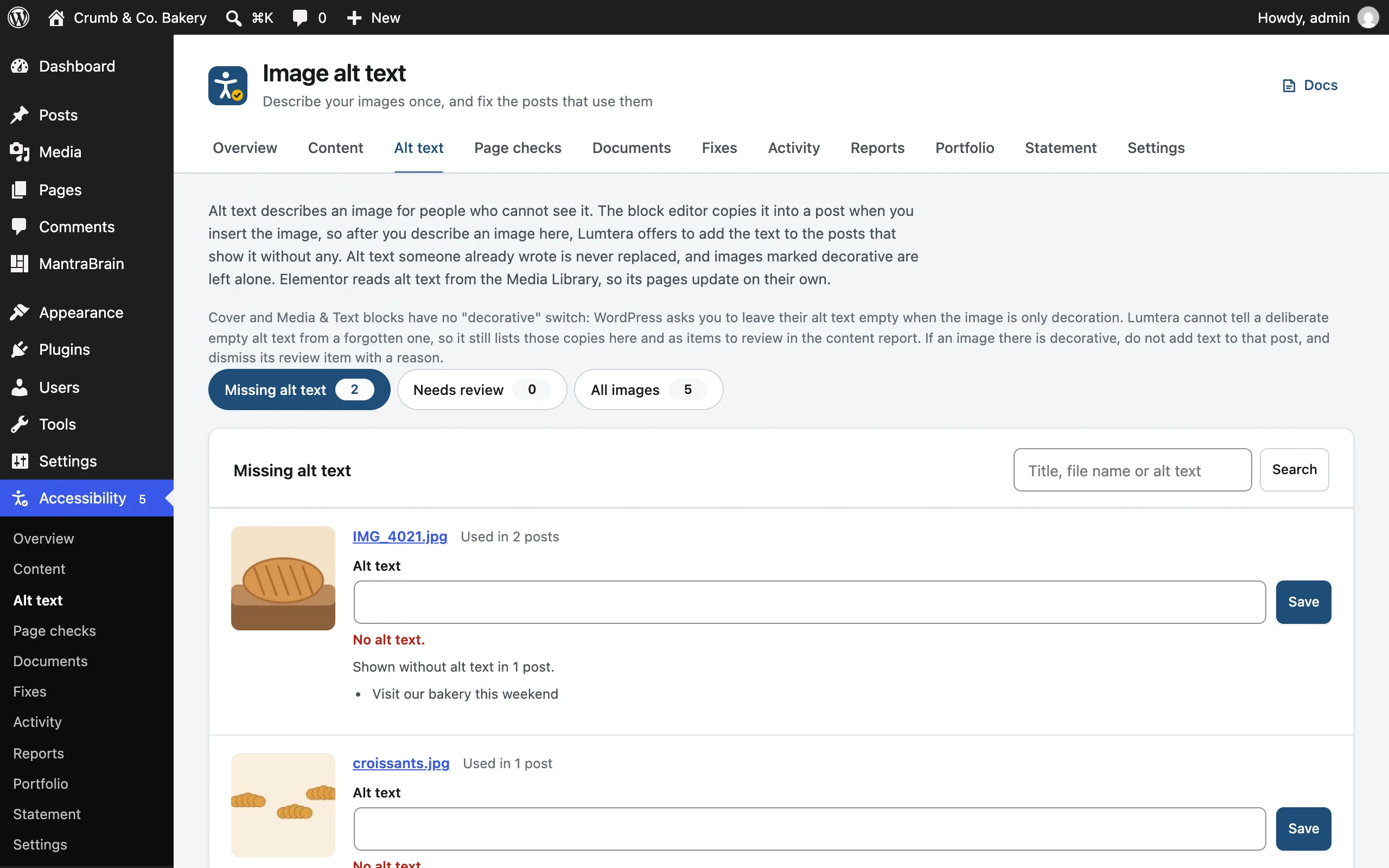
Alt text manager
Missing alt text is one of the most common accessibility errors. The alt text manager puts every image in your Media Library on one screen. Describe an image once, and Lumtera offers to add the description to the posts that show it without one.
Go to Lumtera → Fixes → Alt text.
Why posts need updating too
When you insert an image in the block editor, WordPress copies its alt text into the post. Adding alt text in the Media Library later doesn't update posts that already use the image. The alt text manager closes that gap.
Elementor reads alt text from the Media Library, so Elementor pages update on their own.
Tabs
- Missing alt text: images with no description, including images outside the Media Library
- Needs review: images whose alt text looks wrong, such as a file name, "image of…", a generic word like "photo", or text that's very long
- All images
The screen opens on the first tab that has something in it. Search by title, file name or alt text. Images are listed newest first, 25 per page.
On a very large library, only the newest images with alt text are counted under Needs review, and the screen says so. Older images are still checked when you view them under All images.
Each row shows the image, its file name, and how many checked posts use it.
Images outside the Media Library
Some images in your content have no Media Library entry: they're linked from another site, or added as HTML. There's nothing to describe once for these, so under Missing alt text a card lists them as N images not in your Media Library. The tab's count includes them, so it matches the error count in your reports.
For each image, the card shows its address (or Image embedded in the page code / Image with no address), No alt text., and Found in: with links to edit the posts that show it. Add the alt text in the editor: select the image and fill in Alternative text. When the list is long, See every image without alt text in the content report opens the full list.
Copies of a Media Library image aren't listed here: the main list covers them.
Describe an image and update its posts
- Type a description in the Alt text field and click Save. This updates the image in the Media Library.
- If checked posts show the image without alt text, the row says "Shown without alt text in N posts" and lists them.
- When two or more of those posts are yours to edit, each has a ticked checkbox under "Posts to add it to (untick any where the image is decorative):". Untick any post that should keep the image without alt text, such as a Cover background.
- Click Add it to those N posts (or Add it to that post). When you've unticked some, the button says Add it to N chosen posts. With none ticked, it says "Choose at least one post." and changes nothing.
Posts you left out stay listed under the image, so you can add the text to them later.
Lumtera then adds the description to those posts:
- It never replaces alt text someone already wrote. It only fills in images with no description.
- It leaves decorative images alone, whether they're marked with WordPress's Mark as decorative, Lumtera's Decorative image switch, or
role="none"orrole="presentation"on the image. - Each change is saved as a normal revision, so you can roll it back from the post's Revisions screen.
- Posts you can't edit are skipped, and the screen tells you how many.
Lumtera can update images in Image, Media & Text, Cover, Custom HTML and classic content. If an image is inside another kind of block, the row says so. Add the alt text there in the editor.
If your account can't save certain markup, such as embeds, posts containing it are skipped rather than risk changing them. Ask an administrator to add the alt text there.
Check your content first
The list of posts that use each image comes from Lumtera's checks. Posts that haven't been checked yet won't appear. The screen reminds you if any content hasn't been checked, with a link to the Overview.
Cover and Media & Text blocks
Cover and Media & Text blocks have no "decorative" switch. WordPress asks you to leave their alt text empty when the image is only decoration. Lumtera can't tell a deliberate empty alt from a forgotten one, so it still lists those copies here, and as items to review in the content report.
If the image really is decorative, untick that post when you add the alt text to the others. Then dismiss its review item with a reason.
Who can use it
Anyone who can upload files (Authors and up) can open the alt text manager.
- Editors and administrators see every image.
- Authors see only the images they uploaded, and can only update posts they can edit.
Authors see "Showing the images you uploaded. Ask an editor to describe other images." Developers can change who can open the screen with the lumtera_images_capability filter. See Roles & permissions.
Writing good alt text
- Describe what the image means on this page, not just what it shows.
- Keep it short. A sentence is usually enough.
- Don't start with "image of" or "photo of". Screen readers already announce it as an image.
- If the image contains text that matters, include that text.
- If the image is a link, describe where the link goes.
- If the image adds nothing, mark it decorative instead.
Alt text embedded in photos
Photographers and image libraries can embed alt text in a photo's metadata (the IPTC Alt Text (Accessibility) field). WordPress 7.0 and later copy it into the image's alt text when you upload the image.
On older WordPress versions, Lumtera does the same. It only fills in images that have no alt text yet, and never overwrites alt text someone wrote. If the photo has the field in several languages, it prefers your site's language.
Embedded alt text was written for the photo, not for your page. Check it still fits where you use the image.
AI suggestions
If an administrator has switched on Suggest alt text under AI suggestions, each image you can edit has a Suggest alt text button. It offers up to three suggestions based on the image and where it's used.
- Click Suggest alt text.
- Click Use this next to a suggestion. It's copied into the Alt text field.
- Edit it if needed, then click Save. Nothing is saved until you do.
If the AI thinks the image may be purely decorative, it says so. If the image adds nothing to the content, leave its alt text empty.
Suggestions you save here are recorded against the image, with who accepted them and when. See A record of accepted alt text.
Suggest alt text for several images
When your provider can read images, the Suggest alt text for several images bar lets you ask for drafts in one go:
- Tick Select on the images you want, or click Select all missing.
- Click Suggest alt text. Images are sent one at a time, with progress, such as "Suggesting 3 of 12". Pause, Resume and Stop are there while it runs.
- Each draft appears in its image's Alt text field, marked "AI draft, not saved." Read each one, edit it if needed, and either click Save on the image, or tick I have reviewed this draft.
- Click Save all reviewed to save every draft you ticked. Discard draft throws one away.
Nothing is saved until a person saves it. The same limit on AI requests applies as for single suggestions. If it is reached, the run pauses: wait a few minutes, then choose Resume.