
Monitoring & alerts Pro
Hear about new errors the moment they're published, not at the next audit. Set up alerts under Accessibility → Settings → Alerts. Only administrators can change these settings.
Alert settings
| Setting | Default | Notes |
|---|---|---|
| Email me when a publish adds errors | On | Only new errors on published content. Never repeats. |
| Weekly summary email | On | Mondays at 9:00, with the change since last week. |
| Send to | The site's admin email | Separate several addresses with commas. Invalid addresses are named and not saved. |
| Slack webhook (optional) | Empty | Must start with https://hooks.slack.com/. |
Save, then click Send a test alert to check that email and Slack both arrive. The test uses the saved settings.
With Lumtera Pro installed, the free plugin's weekly email summary is switched off. Pro's weekly summary replaces it.
Set up Slack
- In Slack, create an incoming webhook for the channel you want alerts in.
- Paste the webhook address into Slack webhook and save.
- Click Send a test alert.
If the address doesn't start with https://hooks.slack.com/, it isn't saved, and any webhook saved before is kept.
Slack gets every alert once a webhook is saved, even if the email alert is switched off. The weekly summary is email only. For Microsoft Teams or other tools, use webhooks.
How alerts work
An alert is sent when saving a published post adds errors that weren't in its last published scan.
- Only errors count. Items that need review and tips don't trigger alerts.
- Drafts don't send alerts. When a draft is published, every error it has counts as new.
- Bulk scans, imports and the first scan of content that was already live don't send alerts. They record the starting point.
- The same errors on the same post aren't sent twice within 15 minutes.
- Alerts are sent in the background, so they never slow down the Publish button.
Each alert says who saved the post, lists up to 10 errors, and has a Fix it now button that opens the editor.
Several posts at once
When one action publishes several posts that gain new errors, such as a bulk publish, you get one alert instead of one per post. It's headed "N posts gained new accessibility errors", lists up to 10 posts with the most new errors first, and says how many more there are. The button opens the Content report.
Webhooks still get one alert.new_errors event per post.
Scheduled page checks send the same kind of alert when a live page gains new errors.
Weekly summary
Every Monday at 9:00 (site time), the addresses in Send to get a summary by email. It includes:
- the score and how it changed since last week
- totals for errors, items to review and checked pages
- the five most common issues
- the five pages that need the most attention
The first summary says next week's will show the change. It's sent even if the publish alert is off.
Score history
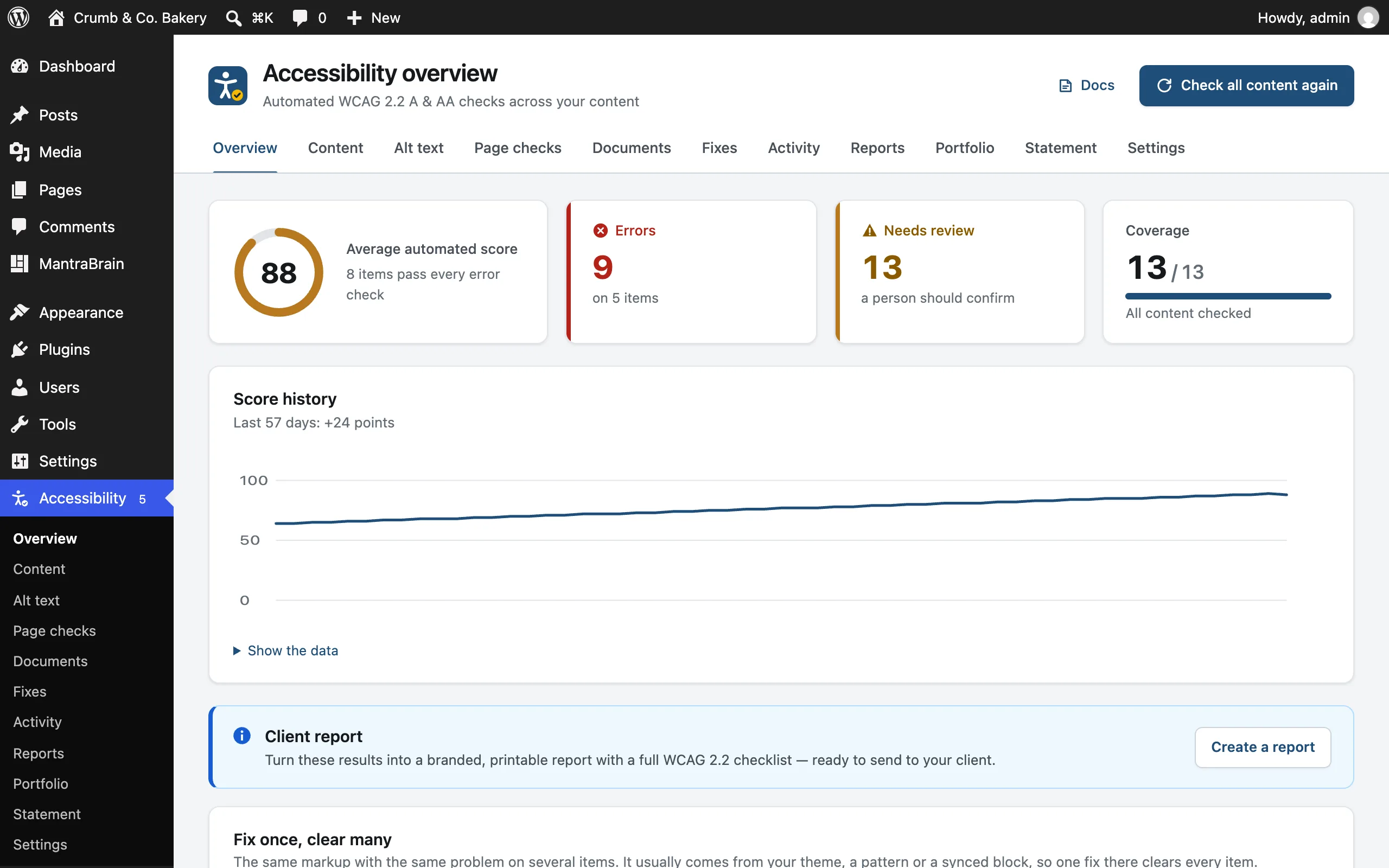
Lumtera Pro saves a snapshot of your site-wide score once a day, and after each full scan. The Score history chart on Accessibility → Overview shows the last 90 days. Show the data opens the same numbers as a table, with the date, score, errors and items that need review.
The trend line appears from the second day.
For developers
lumtera_pro_send_alert and lumtera_pro_send_page_alert can stop an alert. lumtera_pro_importing marks a request as an import, so it records the starting point without alerting. See Hooks & filters.