
Accessibility statement
An accessibility statement tells visitors how accessible your site is, what you know doesn't work yet, and how to reach you if they hit a barrier. The European Accessibility Act (EAA) expects one for many businesses selling in the EU.
Lumtera creates a draft statement page that follows the structure of the W3C statement generator. Go to Accessibility → Statement. Anyone who can publish pages can use it, which means editors and administrators by default.
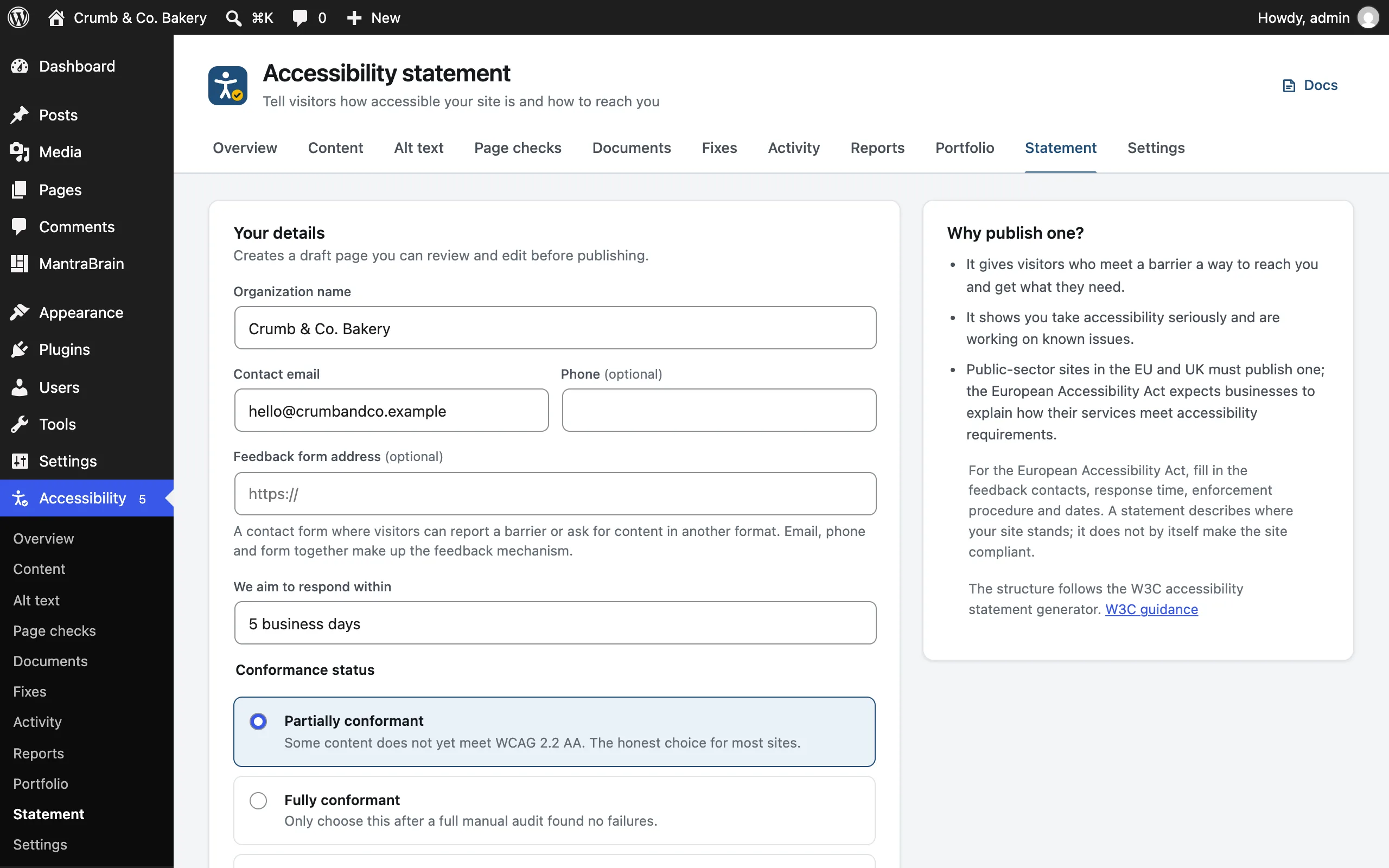
Create your statement
- Fill in the form (see the fields below).
- Click Create draft statement. Lumtera creates a draft page called "Accessibility statement" and opens it in the editor.
- Review and edit the draft, then publish it.
- Link to it from your site footer.
Nothing is published automatically.
Fields
| Field | Notes |
|---|---|
| Organization name | Required. Defaults to your site title. |
| Contact email | Defaults to the admin email. It's protected from spam bots on the page. |
| Phone | Optional |
| Feedback form address | Optional. A contact form where visitors can report a barrier or ask for content in another format. |
| We aim to respond within | Defaults to "5 business days" |
| Conformance status | Partially conformant (the default, and the honest choice for most sites), Fully conformant (only after a full manual audit found no failures), Non-conformant or Not yet assessed |
| Known limitations | One per line. Pre-filled with up to five checks that found errors on published content, each with its WCAG number. Edit them into plain language for visitors. |
| Tested with | Optional. Browsers and assistive technology you've checked the site with, one per line. For example, "NVDA with Firefox". |
| Disproportionate burden | Optional. See the EAA section below. |
| Enforcement procedure | Optional. Where visitors can complain if your reply doesn't help. Text, and/or the Enforcement body web address. |
| Statement first prepared / Last reviewed | Dates. Left empty, "first prepared" keeps its earlier date (or today), and "last reviewed" becomes today. |
| Mention Lumtera as the testing tool | Off by default. When on, the assessment approach names Lumtera. |
What the statement contains
- A commitment to accessibility
- Conformance status, worded to match your choice, against WCAG 2.2 AA
- Feedback: email, phone, feedback form and your response time
- Known limitations
- Technical specifications (HTML, WAI-ARIA, CSS, JavaScript)
- Compatibility with browsers and assistive technology
- Assessment approach: self-evaluation and automated testing of your content
- Disproportionate burden
- Enforcement procedure
- Preparation of this statement, with the dates
Optional sections you leave empty are left out.
For the European Accessibility Act
The EAA expects a statement to include a way to give feedback, how quickly you respond, the enforcement procedure, and dates. If you rely on the "disproportionate burden" exemption for part of your service, it expects you to say so. The Feedback, Disproportionate burden, Enforcement procedure and date fields cover these.
Your country's enforcement body is usually a consumer protection or market surveillance authority. Check your national EAA guidance for which body to name.
Updating your statement
Fill in the form again and click Update draft statement. Lumtera never overwrites work you've done:
- If you haven't edited the draft, it's updated in place.
- If you've edited the draft, your edits are kept, and a new draft is created from the form.
- If the statement is already published, the live page is left unchanged, and a new draft is created for you to review and publish. The Statement screen links to it with Open the new draft.
- If the statement page is in the trash, a new draft is created. You can also restore the old page from the trash.
Review it every year
Statements should be reviewed at least once a year. If yours was last reviewed more than a year ago, the Statement screen reminds you.
The statement page is your content, so it's kept if you uninstall Lumtera.