
Roles & permissions
Lumtera works with WordPress's standard roles. It works out of the box, and you can change who can do what under Lumtera → Settings → Permissions.
Permissions settings
The Permissions section lists every role on your site under four headings. Tick the roles that can do each one and click Save changes. Changes apply right away, to every user with the role.
Administrator (always) is ticked and can't be unticked, so no one can lock the site owner out.
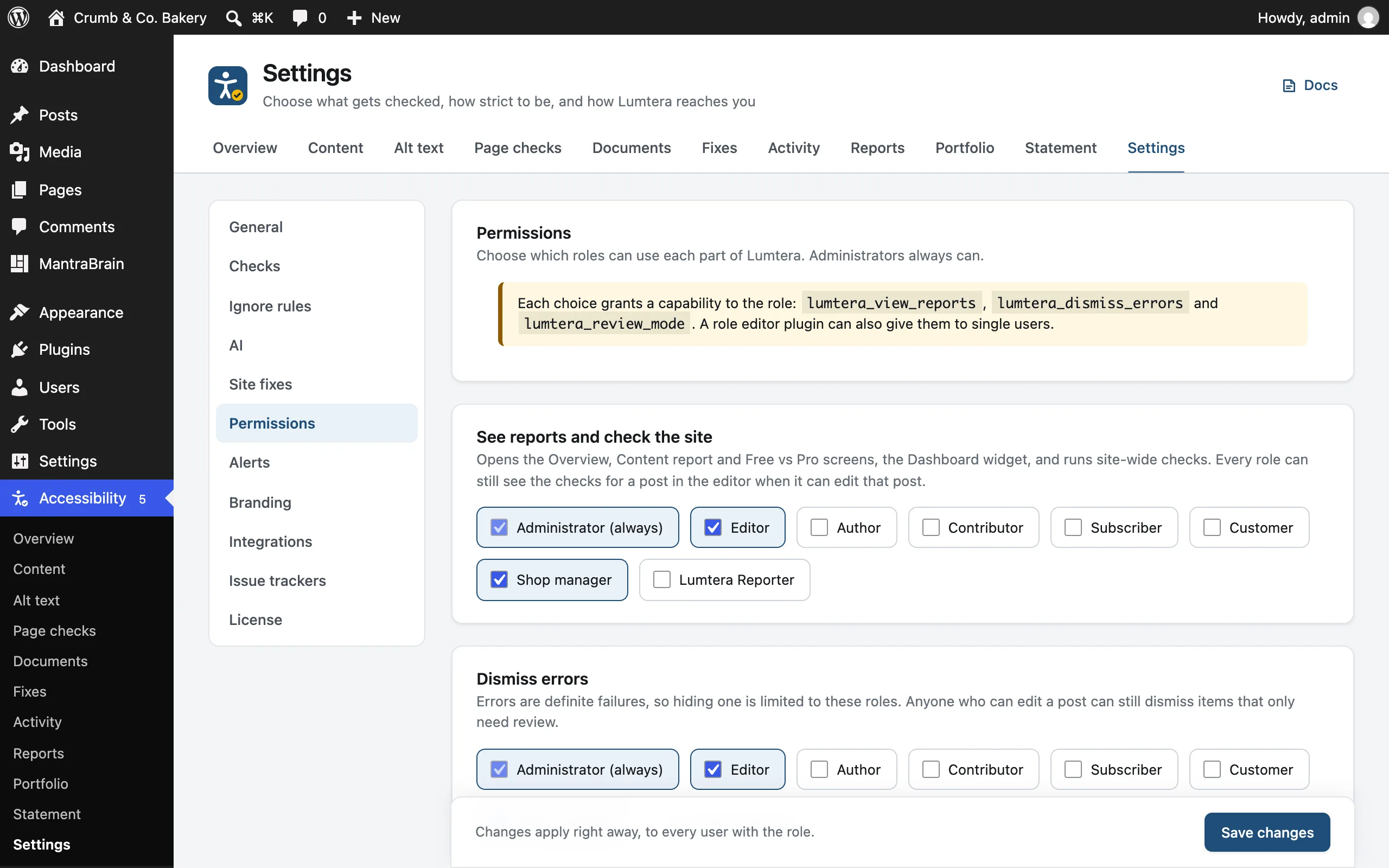
| Permission | What it allows | Default roles |
|---|---|---|
| See reports and check the site | Opens the Overview, Content report and Upgrade to Pro screens and the Dashboard widget, and runs site-wide checks such as Check all content. With Lumtera Pro, it also opens Page checks, Documents, Test sessions and Reports. Roles that can't edit other people's posts, such as authors, see only published items and their own in the reports, and their totals. | Administrator, Editor |
| Dismiss errors | Dismissing and restoring errors. Anyone who can edit a post can still dismiss items that only need review, and tips. | Administrator, Editor |
| Review pages on the site | Shows the Accessibility item in the toolbar on the front end, which opens review mode. On a single post or page, it appears only if the person can edit it. On the blog home, archives, search results and the shop page, it also needs See reports and check the site. | Administrator, Editor, Author, Contributor |
| Handle accessibility feedback | Opens Lumtera → Feedback & statement → Feedback: read what visitors report, change its status, reply by email and add internal notes. Feedback can hold visitors' names and email addresses, so give this only to people who answer it. See Feedback form and inbox. | Administrator, Editor |
The defaults are every role that can edit other people's posts (for reports and dismissing errors), and every role that can edit posts (for review mode). Roles added by plugins follow the same rule. For example, WooCommerce's Shop manager gets all four.
Every role can always see the checks for a post in the editor when it can edit that post, whatever you choose here.
How it works
Each permission is a capability that Lumtera gives to the roles you tick:
| Permission | Capability |
|---|---|
| See reports and check the site | lumtera_view_reports |
| Dismiss errors | lumtera_dismiss_errors |
| Review pages on the site | lumtera_review_mode |
| Handle accessibility feedback | lumtera_manage_feedback |
Because they're ordinary capabilities, role editor plugins show them, and you can give one to a single user without changing their role.
If you delete Lumtera with Delete everything chosen under Lumtera → Settings → General → When Lumtera is deleted, these capabilities are removed from every role. With the default, Keep my data, they stay, so reinstalling restores everyone's access.
Change settings
Change settings isn't a choice here. Settings, including how severe each check is, always need the manage_options capability, which administrators have.
Who can do what
With the default permissions:
| Task | Administrator | Editor | Author | Contributor |
|---|---|---|---|---|
| See the editor sidebar on posts they can edit | ✓ | ✓ | ✓ | ✓ |
| Dismiss items to review and tips on posts they can edit | ✓ | ✓ | ✓ | ✓ |
| Dismiss errors on posts they can edit | ✓ | ✓ | ||
| Open review mode on posts they can edit | ✓ | ✓ | ✓ | ✓ |
| Guided checklists on posts they can edit | ✓ | ✓ | ✓ | ✓ |
| Use the alt text manager | ✓ | ✓ | Own uploads | |
| Overview, Content report, Dashboard widget, Check all content | ✓ | ✓ | ||
| Handle accessibility feedback | ✓ | ✓ | ||
| Create the accessibility statement | ✓ | ✓ | ||
| Change settings | ✓ |
Rows 3, 4, 7 and 8 follow your Permissions settings. The others use fixed WordPress capabilities:
- Alt text manager: anyone who can upload files (
upload_files). Editors and administrators see every image. Authors see only the images they uploaded. See Alt text manager. - Accessibility statement: anyone who can publish pages (
publish_pages). - AI suggestions: anyone who can edit the post, once an administrator has switched the feature on. Suggest alt text in the Image block also needs
upload_files. See AI suggestions. - Fixes: anyone who can edit the post can review and apply a fix on it. Fixing a template part, menu or widget at the source needs
edit_theme_options(administrators). See Fixing issues.
Lumtera Pro
Pro Every plan
| Task | Administrator | Editor | Author | Contributor |
|---|---|---|---|---|
| Page checks, Documents, Test sessions; open and download reports | ✓ | ✓ | ||
| Create, delete and share client reports; edit the ACR | ✓ | Only if given Manage client reports | ||
| Fix tracking: see every task | ✓ | ✓ | ||
| My fixes: tasks assigned to them or on their posts | ✓ | ✓ | ||
| Track a fix | ✓ | ✓ | Assign to self only | Assign to self only |
| Propose fixes in the Fixes queue | ✓ | ✓ | ||
| Approve and apply fixes in the Fixes queue | ✓ | ✓ | ||
| Burden records | ✓ | ✓ | ||
| Evidence, Compare scans, Activity, Portfolio, Ignore rules, license, Pro settings | ✓ |
Page checks, Documents, Test sessions, opening reports and seeing every fix follow See reports and check the site. Burden records need the right to publish pages. Anyone who can edit a post can track a fix on it. Assigning a fix to someone else needs the edit_others_posts capability (editors and administrators).
Lumtera Pro adds three permissions to this section:
| Permission | Capability | Default roles |
|---|---|---|
| Propose fixes | lumtera_propose_changes | Administrator, Editor |
| Approve and apply fixes | lumtera_approve_changes | Administrator, Editor |
| Manage client reports | lumtera_manage_reports | Administrator |
Propose fixes and Approve and apply fixes are for the Fixes queue. People also need to be able to edit the page, so only roles that can edit content can be given them (plus any role that already has one, so it can be taken away). Anyone who can edit a page can still fix one issue at a time from the editor or the Content report, unless Require a second person to approve is on (Agency plan and up): then these choices apply there too.
Manage client reports
Manage client reports is needed to create and delete client reports, make and revoke share links, and edit the conformance report. Anyone with See reports and check the site can still open and download reports, and view the conformance report. Reading, changing or deleting a stored report any other way, such as over XML-RPC, also needs Manage client reports.
It has its own card below the other permissions, Manage client reports (Lumtera Pro). Administrator (always) is ticked and can't be unticked. The card lists the roles that can edit posts. Tick the roles you want and click Save report permissions. Changes apply right away, to every user with the role. Share links let anyone with the address read a report, so give this only to people who send reports to clients. The Accessibility client role is never listed. See Who can manage reports.
Accessibility client
With Lumtera Pro, the Accessibility client role (lumtera_client) is for your clients. On every plan, a client can open the Overview, Reports and the finished conformance report (ACR), read-only: they can't create, delete or share reports, run checks or change anything. Other Lumtera screens send them back to the Overview. It works with WooCommerce active too. See Client reports.
Lumtera Reporter
Lumtera Reporter is a role with one job: letting an agency's portfolio read this site's accessibility summary. It can log in to read its own profile, and read the summary through the REST API. That's all. It can't see or edit content, Lumtera's screens or anything else in wp-admin.
To give an agency access:
- Go to Users → Add New User and create a user with the role Lumtera Reporter.
- Edit the user and create an Application Password.
- Send the username and Application Password to the agency.
The summary includes the site name and address, the Lumtera version, the score and totals, the five most common issues, and the titles of up to five published items with the most errors. It includes no page content.
To revoke access, delete the Application Password or the user.
Under Lumtera → Settings → Permissions, the Share the site summary with an agency dashboard card shows which roles can read the summary, and has Add a user to start. The Reporter role also appears in the permission lists like any other role. Leave it unticked there.
Changing permissions with code (developers)
These filters change which capability each check uses. A filter wins over the Permissions settings: once a filter returns another capability, the ticked roles no longer matter for that permission.
| Filter | Default | Controls |
|---|---|---|
lumtera_capability | lumtera_view_reports | Overview, Content, Dashboard widget, site-wide checks, and Pro's Page checks, Documents and Reports |
lumtera_dismiss_errors_capability | lumtera_dismiss_errors | Dismissing and restoring errors |
lumtera_review_capability | lumtera_review_mode | Review mode on the front end (on top of editing the post) |
lumtera_feedback_capability | lumtera_manage_feedback | The Feedback inbox |
lumtera_images_capability | upload_files | The alt text manager |
Usually the Permissions settings are all you need. For example, to let authors dismiss errors, tick Author under Dismiss errors. To do the same in code:
add_filter( 'lumtera_dismiss_errors_capability', fn() => 'publish_posts' );The lumtera_can_check_all filter can stop people running Check all content, even when they can see the reports. For example, return false to leave full checks to WP-CLI on a very large site.
See Hooks & filters.