
Evidence log
Pro Every plan
The evidence log is a record of the accessibility work done on your site, kept as it happens. You can show it to a client, a customer, a regulator or your lawyer. Go to Lumtera → Reports → Evidence (administrators only).
Not legal advice
The evidence log records your organisation's accessibility work. It doesn't certify conformance, and it isn't legal advice.
What is recorded
Lumtera Pro records these events on its own. You don't need to do anything extra.
| Group (Show filter) | What is recorded |
|---|---|
| Scans | Each full scan of your content ("Check all content" or WP-CLI), with how many findings are new, fixed and still there since the previous one. Site parts checks, scheduled page checks and form tests. |
| Manual tests | Each manual test result recorded (or cleared) in the block editor or in a test session, and each session signed off or reopened. |
| Accessibility statement | The statement being published and reviewed. |
| Applied fixes | Fixes applied, undone and verified from the fixes queue. Fixes that a later scan confirmed in fix tracking count too. |
| Accessibility feedback | Feedback received, its status changes, who it was assigned to, and requests that went past your response target. |
| Disproportionate burden | Burden records saved and reviewed. |
| Exception tags | Content tagged with an exception, or a tag removed. |
| Evidence ledger | The ledger's own records: personal data removed at someone's request, and old entries removed by the retention setting. |
Entries never hold personal data beyond the name of the person who did something. They don't include what visitors wrote in feedback, their names or email addresses, testers' notes, screenshots or text that was changed.
The Evidence screen
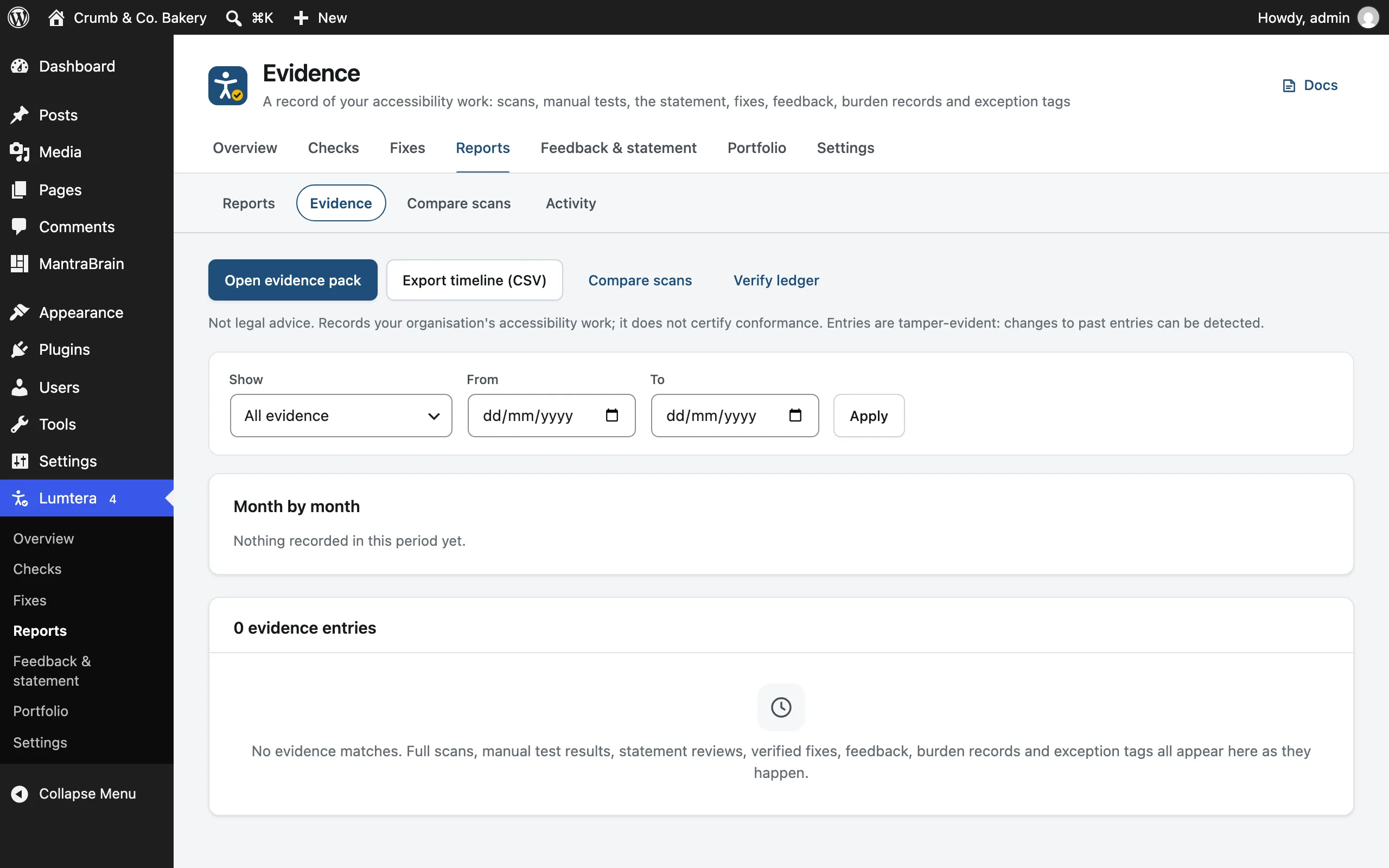
At the top:
- Open evidence pack opens the evidence pack.
- Export timeline (CSV) downloads the entries that match your filters.
- Compare scans opens Compare scans.
- Verify ledger takes you to the ledger check on the Activity screen (see Check the ledger).
Filter with Show (All evidence or one group), From and To, then click Apply.
- Month by month counts what was recorded in each month of the period, for example scans, fixes, manual tests and whether the statement was published or reviewed.
- The timeline lists each entry, newest first: What happened, its Type, When, and its Entry number and seal: sealed and chained, sealed, not chained, or from before the ledger.
The timeline CSV has the columns Time (UTC), Entry, Area, Event, What happened, Object type, Object ID, Seal and Hash.
How entries are sealed
Evidence entries are tamper-evident: if someone changes an earlier entry, you can detect it.
- Each entry is sealed with a hash (SHA-256) of its content, and that hash includes the hash of the entry before it. This links the entries into a chain.
- Changing, adding or removing an entry breaks the chain from that point on.
- The latest entry's hash is kept separately and printed in every evidence pack. If the newest entries were removed, or the ledger was rewritten from some point on, it no longer contains that hash.
Someone with access to your database can still change entries. The ledger can't stop that. Verify ledger shows whether they did.
Entries recorded at the same moment as another one may be sealed on their own without being linked into the chain. They're marked sealed, not chained, and Verify ledger counts them. Entries recorded before the ledger existed aren't sealed, and are marked from before the ledger.
Check the ledger
- Go to Lumtera → Reports → Activity, or click Verify ledger on the Evidence screen.
- In the Evidence ledger card, note the latest entry and its hash.
- Click Verify ledger.
If nothing was changed, you'll see: "The ledger checks out: 128 evidence entries still match their hashes, and every chained entry links to the one before it."
If an entry was edited, you'll see which one, for example: "Entry #57 was changed after it was recorded: its content no longer matches its hash." followed by "Entries before that point checked out. Restore the activity table from a backup, or keep this result with your records." Other results say where the chain breaks, or that the newest or oldest entries are missing.
The check runs step by step in your browser. With JavaScript turned off, it checks as many entries as it can and tells you where it stopped.
The evidence pack
Click Open evidence pack for a printable record of your work. It includes:
- Summary, with a month-by-month table of the last 12 months
- Scope and method: the checks run, the WCAG 2.2 A and AA standard, how much content was checked, coverage, and the last full scan with what was new and fixed
- Score and coverage history, from the daily snapshots
- Accessibility statement: its standard, when it was prepared and last reviewed, and its saved versions
- Manual test records
- Verified fixes: fixes a later scan confirmed
- Accessibility feedback log, by reference only, with whether each answer came within your target. What people wrote, their names and addresses stay in your site.
- Disproportionate burden records and exception tags
- Accessibility conformance report: the product and how many criteria are at each level, if you've saved one
- Evidence ledger: the latest entry when the pack was made, and its hash
Keep each pack you hand over. If the ledger were later rewritten, it would no longer contain the hash printed in the pack.
The pack's toolbar:
- Save as PDF opens your browser's print dialog. Chrome and Edge produce a tagged PDF that screen readers can navigate.
- Download HTML saves a self-contained file.
- Timeline (CSV) downloads the timeline as
accessibility-evidence-<your-host>-<date>.csv, for exampleaccessibility-evidence-example.com-2026-09-28.csv.
The pack uses your report branding: logo, agency name and accent color. It ends with a Lumtera credit unless white-label is on (Growth plan and up). It states that it isn't legal advice and doesn't certify conformance.
How long evidence is kept
Evidence has its own retention setting, separate from the rest of the activity log.
- Go to Lumtera → Reports → Activity.
- Under How long to keep activity, set Keep evidence for a number of days.
- Click Save.
The default is 0, which keeps all evidence: a record of your accessibility work needs its history. When you set a number, the oldest entries are removed first, and the ledger records that it happened, so Verify ledger still checks out.
Privacy requests
Evidence is part of WordPress's personal data tools (Tools → Export Personal Data and Erase Personal Data), as part of the activity log.
Erasing a person's data anonymises their entries rather than deleting them: their name is replaced with "A removed user". The record of what happened stays. The ledger adds an entry noting the change, so the chain still verifies, and Verify ledger reports how many entries had personal data removed.
For developers
- The
lumtera_pro_ledger_lock_waitfilter sets how many seconds an evidence entry waits for the ledger before it's stored sealed but not chained (default 2). - The
lumtera/evidence-summaryability returns what the ledger recorded, month by month. See Abilities.
See Hooks & filters.