
Block editor sidebar
Lumtera checks your post while you write and lists each issue next to the block that caused it, with a plain-language fix.
Open the sidebar
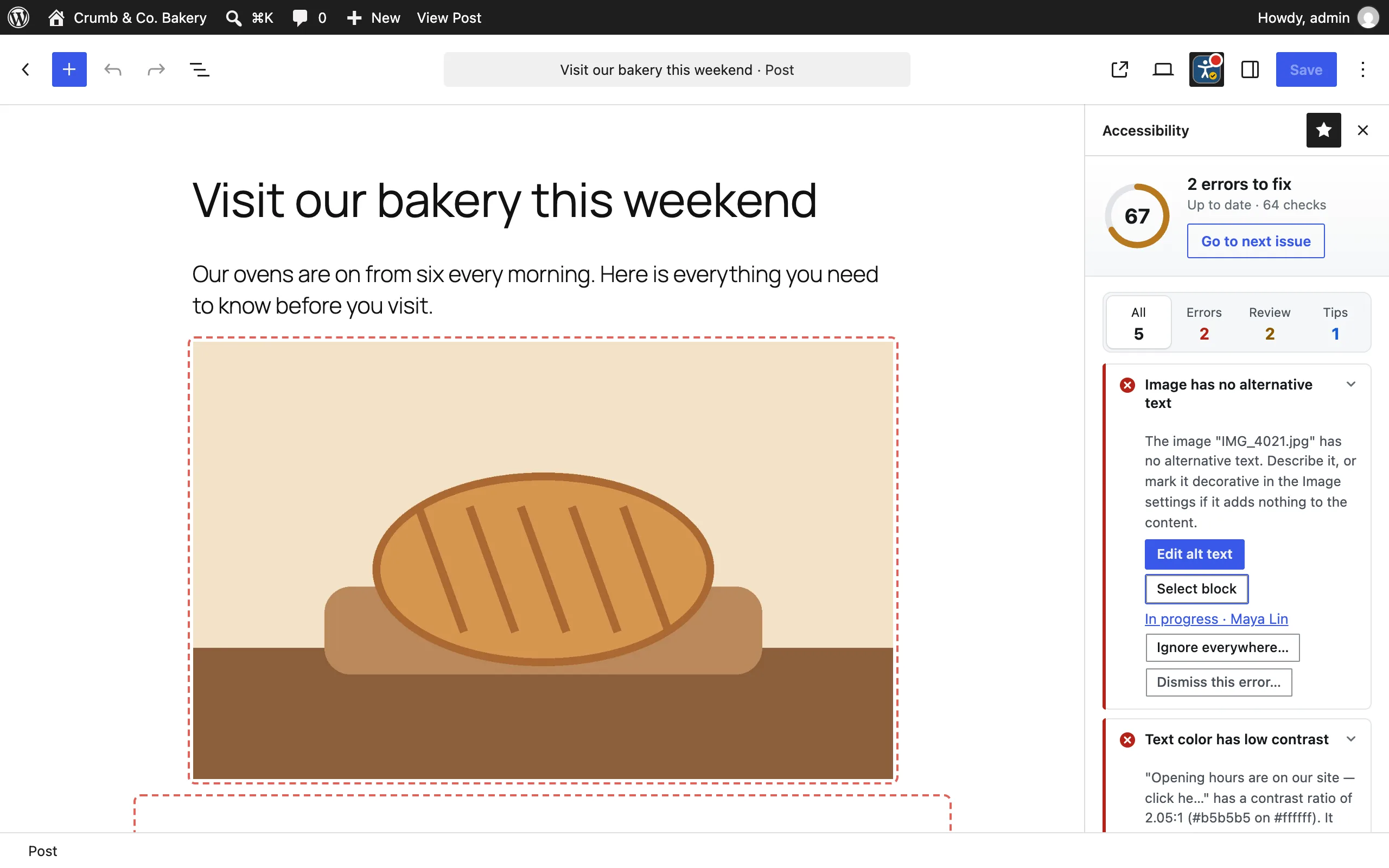
Click the Lumtera icon in the editor's top toolbar. The icon shows a colored dot when there are errors or items to review. You'll also find it in the Options menu (⋮) as Accessibility checker.
The sidebar appears for the content types Lumtera checks: posts, pages and products by default. You can change this in Settings.
How live checking works
- The first check runs as soon as the editor loads.
- After that, Lumtera checks again a moment after you stop typing, and at least every few seconds while you keep editing.
- Live results aren't saved. The stored result, used in reports, updates when you save the post.
- Screen reader users hear a short announcement when a check finishes.
Very large posts (over 512 KB of content or 5,000 blocks) aren't checked live. The sidebar says "This post is too large to check live; it is checked when you save."
What the sidebar shows
At the top:
- the post's score (see Scores & severities)
- a headline, such as 3 errors to fix, 2 items to review or No automated issues found
- Go to next issue, which steps through every issue and selects its block
- filters: All, Errors, Review and Tips, each with a count
Below that, one card per issue. Click the title to expand it and see:
- How to fix: what to do, in WordPress terms
- Markup: the HTML that triggered it
- a link to the WCAG success criterion it relates to
Each card has these buttons:
- Select block jumps straight to the block with the problem.
- A quick fix button, when one applies. See below.
- Dismiss… for issues that aren't a problem (Dismiss this error… on errors, for people allowed to dismiss them). See Dismissing issues.
- With AI writing help switched on, Suggest link text, Suggest heading or Suggest subheadings on the issues they help with. See AI writing help.
- With Lumtera Pro: Track fix (see Fix tracking) and Ignore everywhere… (see Ignore everywhere). Pro
Quick fixes
Quick fixes repair mechanical problems in one click. They work on WordPress's own core blocks. Every quick fix is a normal edit: a notice appears with an Undo button, and Ctrl/Cmd+Z works too.
| Issue | Button | What it does |
|---|---|---|
| Heading level is skipped | Change to H3 (for example) | Sets the heading to one level below the heading before it |
| Content uses an H1 heading | Change to H2 | Changes the H1 to an H2. Your theme already shows the post title as the H1. |
| Heading is empty | Remove empty heading | Removes the empty Heading block |
| Bold text may be a heading | Turn into H2 (for example) | Replaces the bold paragraph with a real Heading block |
| Text is formatted as a list by hand | Convert to a list | Turns lines starting with "-", "•", "1." and similar into a real List block. Numbered markers make a numbered list. |
| Link opens a new tab without warning | Open in the same tab | Removes "open in new tab" from the link |
| Table has no header cells | Use first row as header | Moves the first row of the table into a header row |
| Empty paragraphs used for spacing | Remove empty paragraphs | Removes the run of empty paragraphs. Use a Spacer block for extra space. |
| Alt text problems on an Image block | Edit alt text | Selects the image and puts the cursor in its Alternative text field. It doesn't change anything itself. |
Outlines
Blocks with issues get a subtle outline in the editor: dashed red for errors and dotted amber for items to review. Tips aren't outlined.
Switch outlines off for yourself with Outline blocks with issues at the bottom of the sidebar. Your choice is remembered. Administrators set the default for everyone in Settings.
Decorative images
Some images add nothing to the content, like a divider or a background flourish. They should be marked decorative, so screen readers skip them, rather than left without a description.
- WordPress 7.1 and later: use WordPress's own Mark as decorative option in the Image block settings.
- Earlier versions: Lumtera adds a Decorative image switch in the Image block's Accessibility panel. Turning it on clears the alt text on purpose.
Lumtera recognizes both, so a deliberately decorative image is never reported as missing its description.
Suggest alt text with AI
If an administrator has switched on AI alt text suggestions, the Image block's Accessibility panel also has Suggest alt text. It offers up to three suggestions. Click Use on one to set it, then read it and edit it before publishing. If the AI thinks the image may be decorative, it says so and points you to the decorative setting instead.
Reading level
For content of 100 words or more, the sidebar shows a Reading level, such as Grade 8 · Easy to read. It works in six languages, each with a formula made for that language:
| Language | Formula |
|---|---|
| English | Flesch–Kincaid grade level |
| Spanish | Fernández Huerta reading ease |
| French | Kandel–Moles reading ease |
| German | Flesch–Amstad reading ease, with the Wiener Sachtextformel for the grade |
| Italian | Gulpease index |
| Dutch | Flesch–Douma reading ease |
Scores are turned into an approximate school grade, so every language shows a grade. Lumtera uses the post's language from Polylang or WPML when either is active, and your site language otherwise. Content in other languages gets no reading level, because a formula made for one language gives meaningless numbers in another.
Above grade 9, the sidebar suggests shorter sentences and simpler words. WCAG 3.1.5 (AAA) suggests offering a plain summary above that level. With AI writing help switched on, Draft a plain-language summary appears here too.
AI writing help
If an administrator has switched on AI writing help under Accessibility → Settings → AI, some issue cards get a button that asks your AI provider for a draft:
| Button | On these issues |
|---|---|
| Suggest link text | Link text is vague, Link text is a web address, Same link text goes to different pages |
| Suggest heading | Bold text may be a heading |
| Suggest subheadings | Long content has no subheadings |
Draft a plain-language summary appears under the reading level when the content reads above grade 9.
Nothing is sent until you click, and nothing changes until you choose a draft. Using a draft is a normal edit that Undo reverts. Drafts can be wrong, so read each one before you use it. See AI suggestions for what is sent and how to switch each feature on.
Manual accessibility checks
In the post settings sidebar (the Post or Page tab), the Manual accessibility checks panel lists nine short guided checks for the things no automated check can test, such as using the page with only a keyboard. You record Pass, Fail or Not applicable for each one, and the result is saved on the post. See Guided manual checks.
Before publishing
An administrator chooses what happens when an author publishes content with errors, under Accessibility → Settings → General → Before publishing.
| Setting | What happens |
|---|---|
| Do nothing | Issues are only shown in the sidebar. |
| Show a summary (default) | WordPress's pre-publish panel gets an Accessibility section. It runs a fresh check and lists up to four errors, with Review in the sidebar. Publishing is never blocked. |
| Require confirmation | If there are errors, the author must tick Publish anyway — I will fix these later before publishing or scheduling. |
With Require confirmation:
- The check applies even if the author has switched off WordPress's pre-publish checks. Clicking Publish shows "Not published yet: this post has N accessibility errors." with Review issues and Publish anyway.
- Saving drafts, submitting for review and updating posts that are already live are never held.
- If the check can't run, for example because the post is too large, the author can choose Publish without the check.
- Choosing to publish anyway lasts until the editor is reloaded.
The Elementor and classic editors show issues but never hold publishing.
Pages built with Elementor
If a page is built with Elementor, the sidebar shows results for its saved layout, with an Edit with Elementor button. Use Elementor's own panel to check changes live. See Elementor.